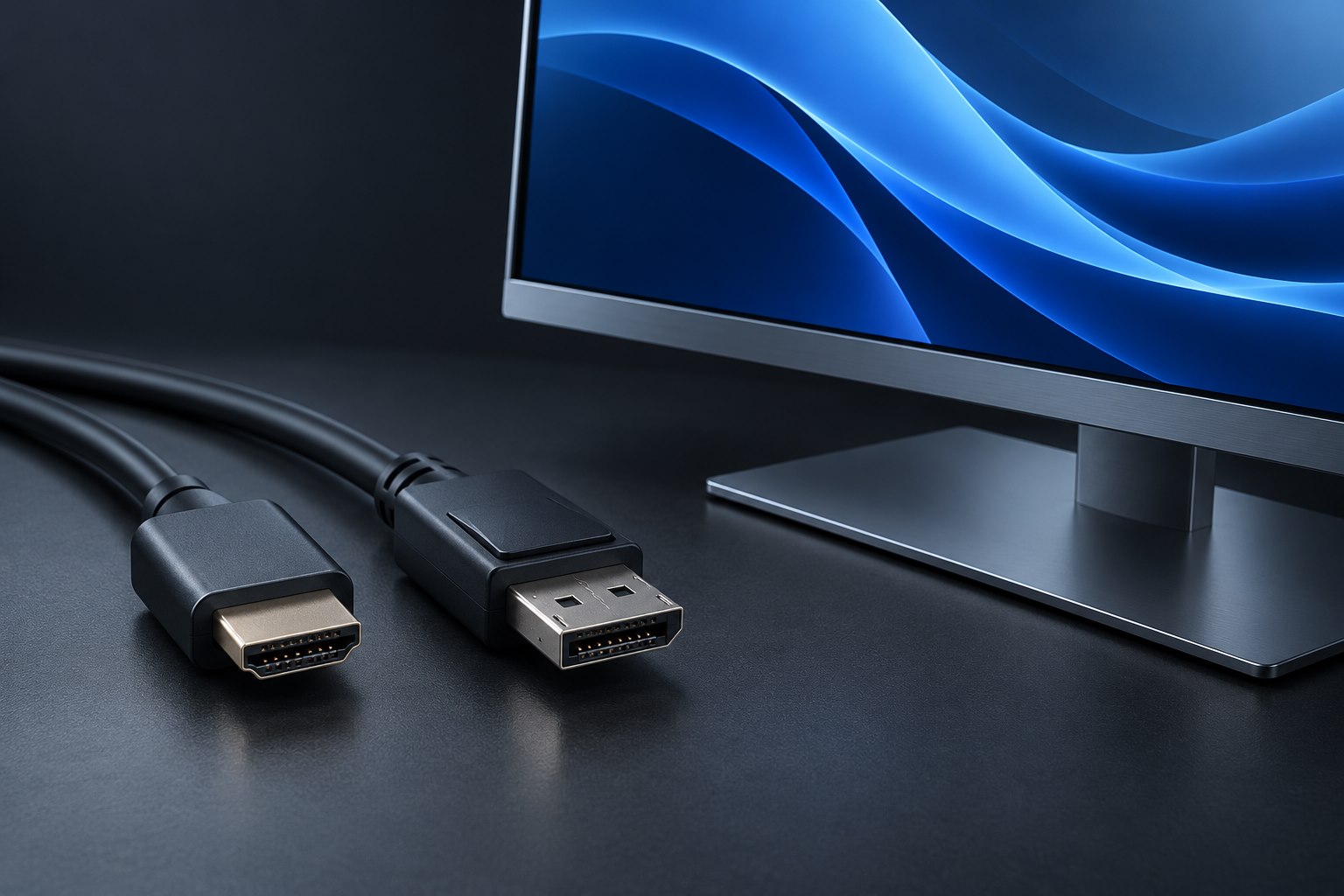
A Capture Card's Passthrough Mode Is Not Its Recording Mode
Check what reaches the display and what reaches the recording computer as two separate requirements.
The connector fits. Will the setup work? Decode cables, docks, video paths, and the specifications that join them together.
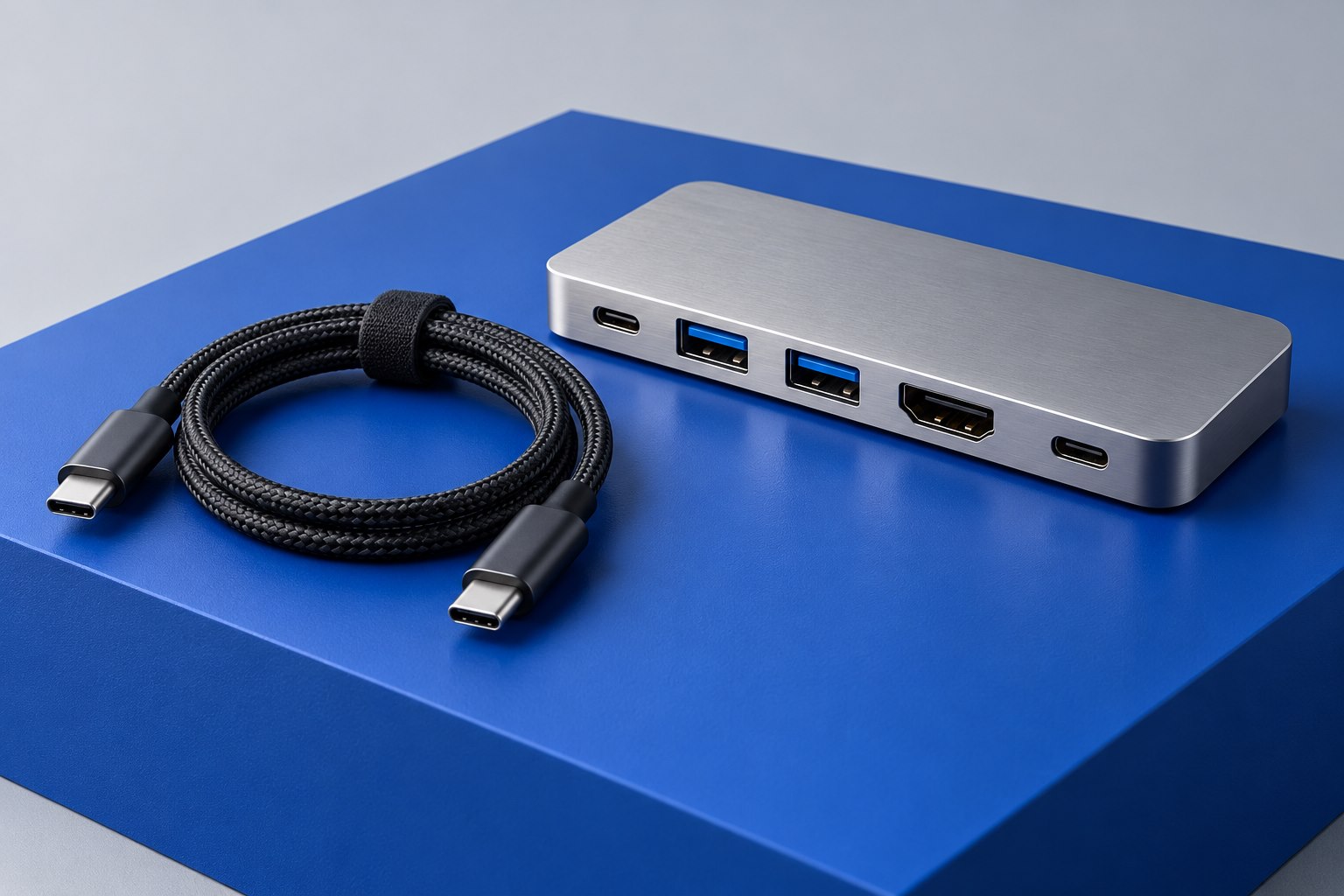
Check what reaches the display and what reaches the recording computer as two separate requirements.
Separate power entering the dock, power reserved for accessories, and power delivered through the host cable.
Use the return period to confirm the complete desk workflow, including the transitions that product specifications cannot demonstrate for your equipment.
Port count is only part of the decision when one accessory travels daily and another stays wired behind a screen.
A tidy bend can improve clearance, but the extra connector must preserve every capability the setup uses.
A small, documented kit beats carrying every connector without knowing which one the laptop can drive.
A trustworthy model number and a verified rating are more useful than an unexplained version number in a marketplace title.
Charging a phone, feeding a monitor, and moving a video folder place different demands on the same-looking cable.
A new connector on the computer does not necessarily require replacing a working printer, but software support still matters.
A webcam across the room and a keyboard across the desk need different extension plans.
The pattern of what drops out is more useful than replacing every cable at once.
One cable is convenient when the devices support it; two correctly assigned cables can be the more reliable arrangement.
Choose the box that matches the direction of your signals and the number of independent pictures you need.
An adapter that works from a DisplayPort computer to an HDMI screen may be useless when the signal travels the other way.
Standing desks and monitor arms need working slack, not just enough cable to connect at one position.
A monitor needs the right output, the host needs the right support, and every screen shares the available connection capacity.
Map video, keyboard, mouse, and optional peripherals separately before choosing the box that switches them.
Long-distance video connections need a route, a direction, and a practical replacement plan.
Downstream ports, shared capacity, and the order of devices all deserve a place in the connection diagram.
A reversible connector can carry several very different promises. Build a short capability map before choosing a dock or cable.
The useful question is whether a specific cable length supports your display setup, not whether its marketing name sounds advanced.
The protocol badge matters, but the host computer, screen plan, and charging budget still decide whether a dock fits.
Use the printed speed, manufacturer legend, and exact port map to avoid assumptions based on blue, red, or yellow plastic.
Match the exact model, read the release notes, and protect the update from ordinary desk interruptions.
Sharing a keyboard and mouse can be simpler than routing every video signal through a full KVM.
Backward compatibility can preserve useful functions, but it is not a promise that every feature survives every combination.
The adapter can translate a supported display signal, but the USB-C source must provide that signal first.
Extra sockets do not create unlimited power or bandwidth. Match the hub to the devices that will share it.
Power reaching a computer is useful evidence, but it does not prove that the display signal has a complete route.
Refresh rate, color settings, compression, and shared links help explain why one cable arrangement supports a mode and another does not.
Two video sockets, two panels, and two independent desktops are three different things to verify.
HDMI or DisplayPort video alone does not normally connect a monitor's USB hub to the computer.