Use the symptom to narrow the problem
A laptop that charges from a monitor while the screen stays dark has established at least part of the connection. That is different from a completely unresponsive setup. The useful next question is whether video is supported and routed correctly, not whether USB-C works in general. Open the computer and monitor manuals and identify the exact ports involved. Some computers have a USB-C charging or data socket that provides no native display output.
The monitor may also contain several USB-C sockets with different functions. Choose the port explicitly described as the upstream display input, then select that input in the monitor's menu. A downstream USB socket can be useful for peripherals while still being the wrong destination for the laptop. Do not infer the role from which connector is easiest to reach.
Remove the cable uncertainty
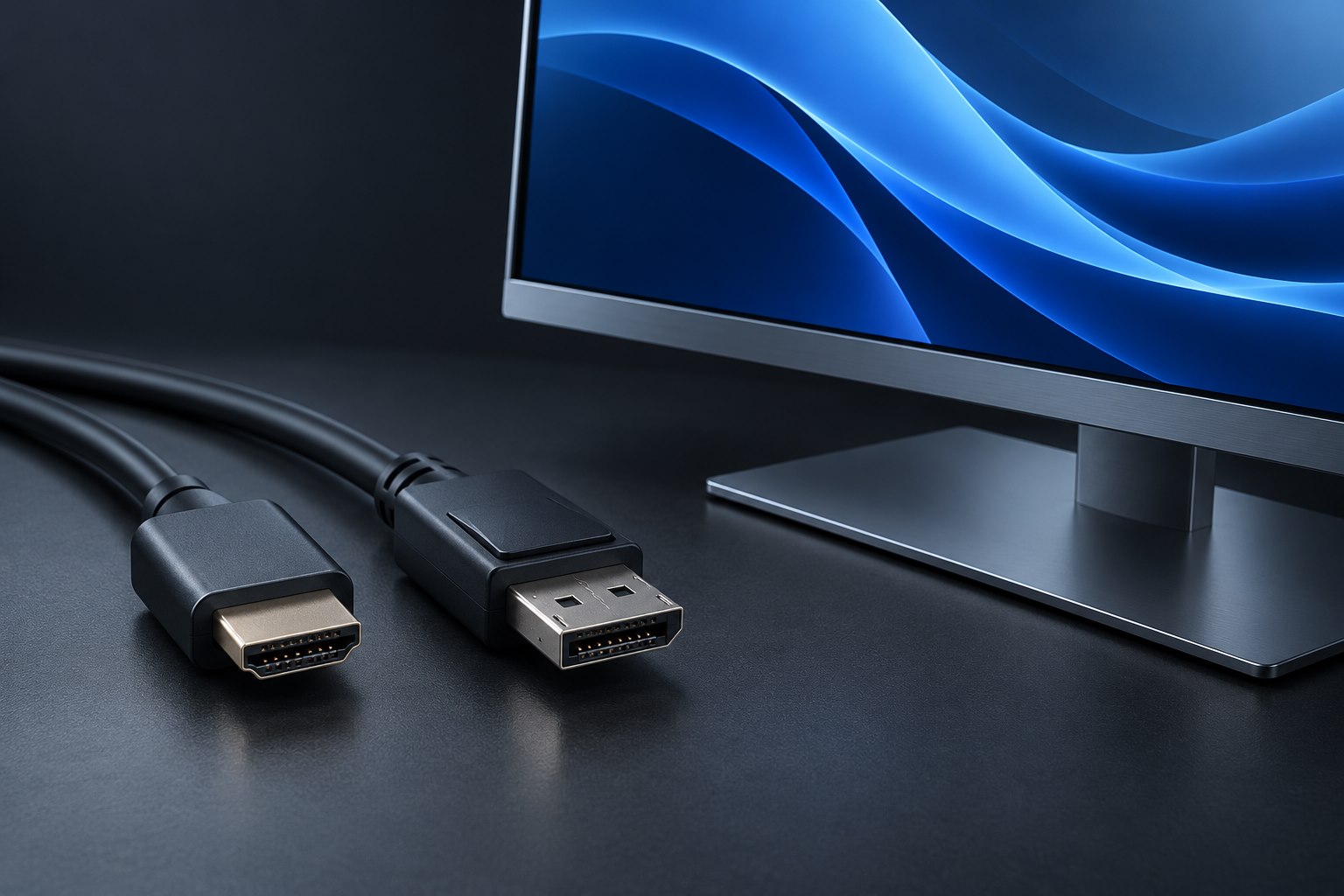
Use the monitor's supplied cable if the manual identifies it for the USB-C display connection. If it is missing, choose a replacement whose specification explicitly covers the required video use. A phone charging lead can pass power without carrying the necessary high-speed signals. Microsoft lists support across the computer, display, and cable as a key requirement when troubleshooting USB-C alternate-mode display connections.
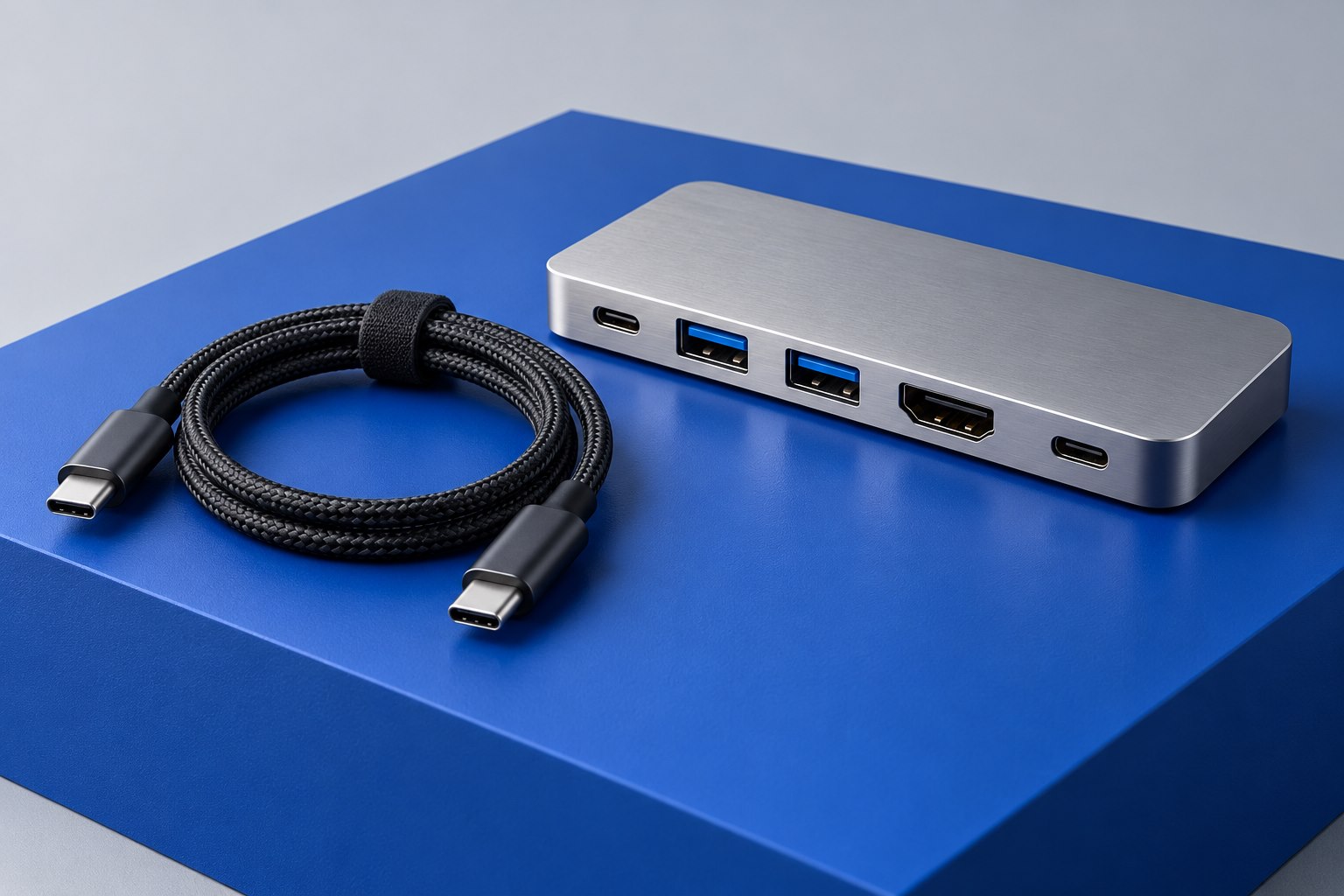
Connect the computer directly to the monitor while testing. Temporarily remove extensions, magnetic tips, adapters, and the dock. This reduces the number of places where capabilities might be lost. If a direct connection works, add the intermediate device back on its own and repeat the test. Changing several parts at once may restore the picture but leaves you without a reliable explanation for the failure.
Start with an ordinary display mode
If the display appears in the operating system but remains blank or flashes, try a conservative supported resolution and refresh rate. Disable optional high-bandwidth features temporarily through normal display settings. A connection that works at a lower setting but fails at the intended one suggests a capability or signal-integrity limit worth investigating. It does not automatically prove that the monitor itself is defective.
Check the monitor's USB priority setting, if present. Some models let the user favor higher display bandwidth or faster hub data. The manual should explain the tradeoff for that model. A setting chosen for a fast drive might alter the display modes available over a shared USB-C link. Take a photograph of the original menu values before experimenting so the changes are easy to reverse.
Collect evidence before replacing hardware
A useful troubleshooting note contains the laptop model, monitor model, cable model, selected ports, and the modes that work. Add whether the display is detected and whether the same monitor accepts another supported input. These details let support distinguish an unsupported configuration from a faulty component. 'USB-C does not work' gives much less information than 'charging works, video is absent on this port with the supplied cable.'
When a compatible direct connection still fails, check the manufacturers' support pages for relevant graphics, dock, or monitor updates and their installation instructions. Avoid installing unrelated driver packages from search advertisements. If another known-compatible cable or computer isolates a fault, pursue the appropriate return or service route. There is no benefit in keeping a connection that only works when its plug is held at a particular angle.
Sources & further detail
These references support the technical context. Examples and selection advice are editorial explanations; verify the documentation for your exact equipment and software.
A detail we should revisit? Send the guide URL and the relevant documentation to SmithKent5791@outlook.com.
Read the editorial policy