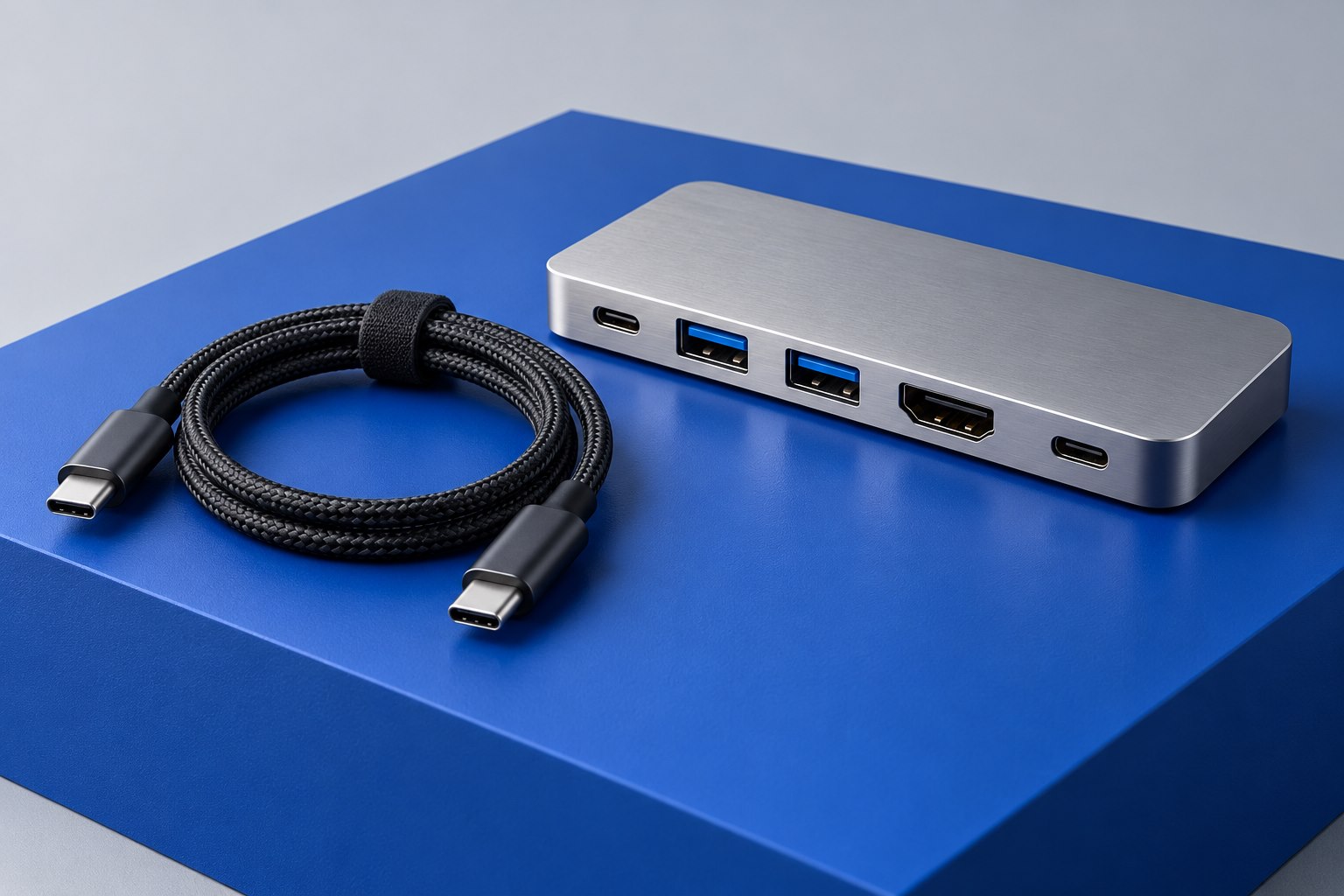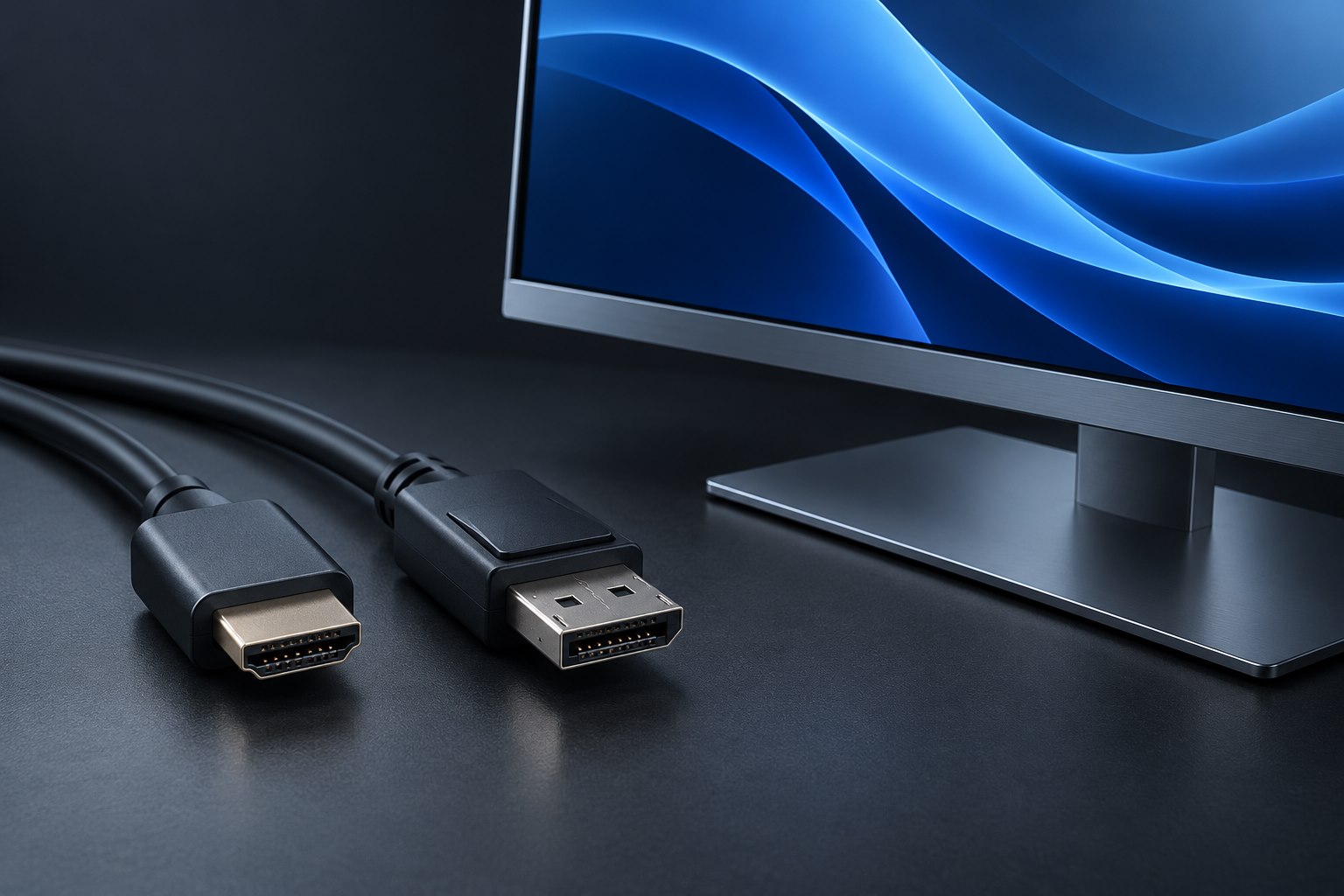
Describe the result you actually need
Mirroring sends the same desktop to more than one screen. Extending creates separate desktop space, allowing a document on one monitor and a spreadsheet on the other. A product listing that says it supports two displays may not explain which behavior is available with your computer. Before buying a dock, write 'two independent external desktops' into your requirements if that is the result you expect.
Start with the computer's documented external-display limit. Include the exact processor or configuration when the manufacturer distinguishes between them, and check whether using the built-in screen changes the supported arrangement. A dock adds connection points; it does not automatically increase the number of native displays a computer can generate. This is why a configuration that works for one colleague may behave differently on another laptop.
Identify how the dock produces its outputs
Some USB-C docks split a DisplayPort connection using Multi-Stream Transport, commonly shortened to MST. Others use display streams carried over Thunderbolt. Some include USB graphics technology that requires software. Those paths have different host and operating-system requirements. Look for a diagram or a compatibility matrix that describes the actual product instead of assuming all docks with two HDMI sockets work the same way.
For example, an MST arrangement can behave differently across operating systems even when the connectors fit. CalDigit's published documentation illustrates why host-specific monitor tables matter. The practical lesson is to verify extended-desktop support for the exact host, rather than to treat any one historical limitation as a rule for every current computer. Product support changes, and model-specific documentation is the appropriate reference.
Read the resolution footnotes together
A dock may support one demanding display or two less demanding displays. It may also require a particular combination of output ports. Read the two-monitor configuration as a whole, including each screen's resolution, refresh rate, and any compression or host requirements. Two individual statements that each output supports a high resolution do not necessarily mean both outputs can achieve that mode simultaneously.
Consider a desk with one high-refresh gaming monitor and one ordinary office panel. You might connect the gaming screen directly to the laptop and the office panel through the dock, if the computer supports that arrangement. This uses an extra cable but can preserve the demanding display mode without forcing every signal through one shared link. The cleanest wiring is not always the most useful allocation of bandwidth.
Work through a mixed-computer example
Imagine a shared desk with two 2560-by-1440 monitors, a work laptop, and a personal laptop. The desired outcome is two independent external desktops on either computer. First check each laptop separately: its native display limit, the capabilities of the chosen port, and any operating-system restrictions on the dock’s display method. If the work laptop supports the dock’s MST arrangement but the personal laptop does not, changing the two HDMI cables will not make the personal machine follow the same architecture.
There are several possible responses, each with a real tradeoff. A dock using a native display path supported by both hosts may solve the shared-desk requirement. A direct second video cable may be simpler when both laptops have another suitable output. A software graphics solution may add usable desktop space, but it brings installation and application considerations. Select the response that matches the computers you have, rather than treating a particular dock as a requirement that every host must somehow satisfy.
Test the arrangement in a deliberate order
First connect one monitor and confirm its intended mode. Add the second and select Extend in the operating system's display controls. Arrange the screen positions so the pointer moves naturally between them, then verify each monitor's refresh rate separately. If the result reverts to mirroring, consult the dock's host table before buying another cable. A cable cannot change an unsupported display architecture.
For docks that use additional graphics software, confirm installation permissions on a managed work computer before purchase. Check whether the software path suits protected video, screen recording, or other applications you use. After setup, test a restart and a sleep-wake cycle with both screens attached. A successful initial picture is encouraging, but everyday usability also depends on the screens returning to the same arrangement when work resumes.
Keep the finished arrangement in a small table: host model, host port, dock output used for each screen, cable or adapter model, and selected display modes. This is particularly useful when a dock has several possible output combinations. If a later operating-system update or computer replacement changes the result, the table preserves the previous configuration and makes the difference visible. It also prevents a helpful cable tidy from moving the second monitor onto a port that shares a different resource.
Sources & further detail
These references support the technical context. Examples and selection advice are editorial explanations; verify the documentation for your exact equipment and software.
A detail we should revisit? Send the guide URL and the relevant documentation to SmithKent5791@outlook.com.
Read the editorial policy