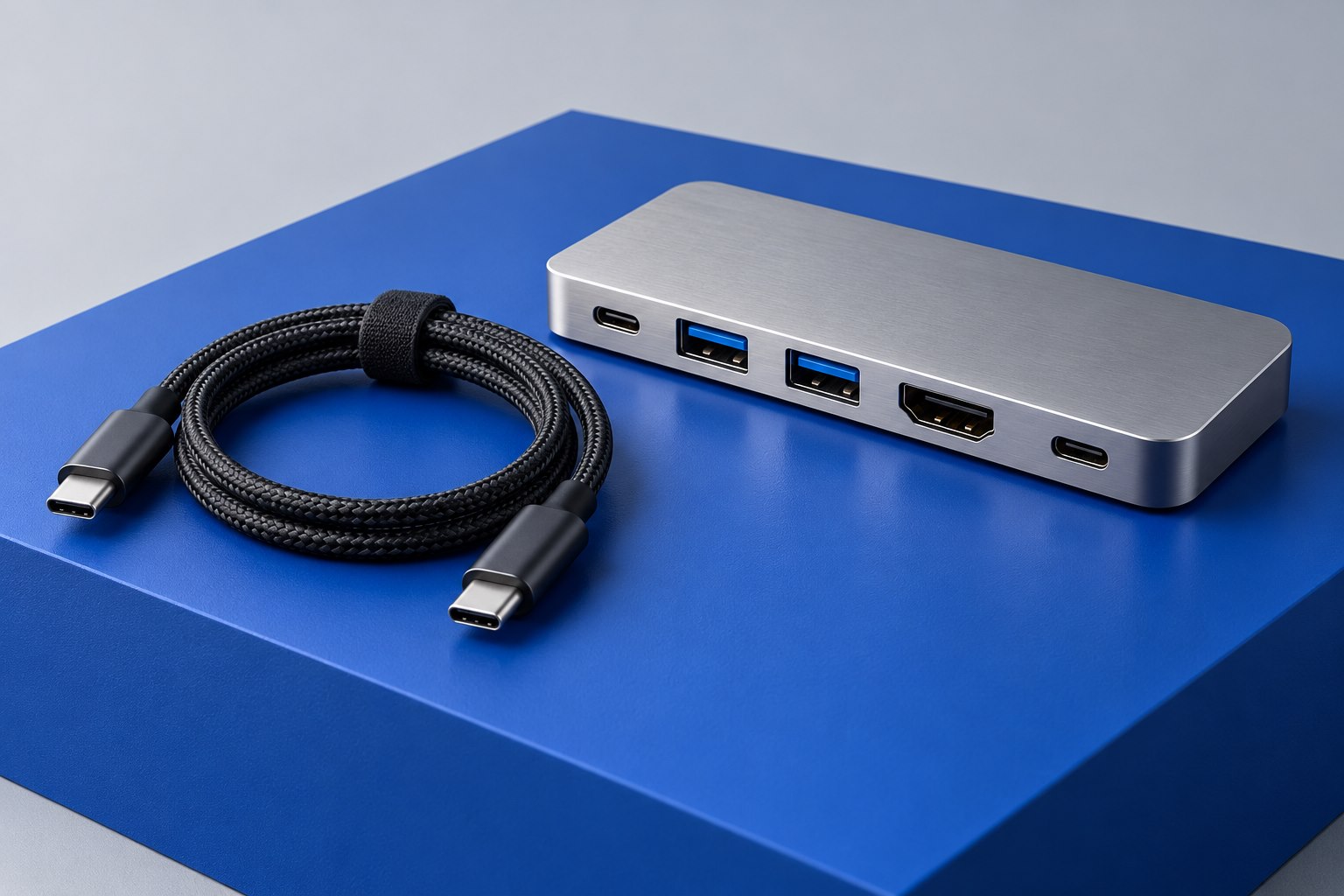
Define the busiest moment at your desk
A dock can look sufficient until everything is active together. List what happens during the busiest ordinary session: two screens displaying a meeting and documents, a camera sending video, and an external drive receiving files. That combination is a better purchasing brief than a count of empty sockets. Also note which devices need constant access and which can be connected temporarily to the laptop itself.
Thunderbolt certification establishes requirements across computers, cables, and accessories; Intel's comparison material documents those requirements alongside USB4. That helps set expectations, but it does not replace the dock's compatibility chart. A dock can support a protocol while exposing a different mix of display outputs, storage connections, and charging capacity from another model carrying the same badge.
Match the dock to the actual host port
Find the computer manufacturer's specification for the exact port you intend to use. A Thunderbolt dock connected to a USB-C host may offer a reduced set of functions, or may require a particular fallback capability. Older products vary. Look for an explicit statement about your type of host rather than accepting a phrase such as 'USB-C compatible' without details about displays, data, and charging.
If two household computers will share the dock, evaluate the less capable one separately. A powerful work laptop working perfectly does not establish that a smaller personal notebook will drive the same pair of monitors. Write a two-row compatibility table with each host and its promised result. This can make an inexpensive dock with clear support more useful than a premium dock whose fallback behavior is undocumented.
Treat display claims as a configuration
Read the monitor-support table in full, including operating-system notes. 'Dual display' may refer to particular ports, resolutions, refresh rates, or computer families. Two HDMI connectors do not guarantee two independent desktops from every host. Native display limits remain relevant, and some products add software-driven video paths that have their own requirements. Decide whether those requirements suit the tasks you run before ordering.
For an existing monitor pair, record each display's preferred input and target mode. Then map the dock outputs to them with the fewest conversions. A direct DisplayPort connection can be simpler than an adapter chain that ends at the same input. If the dock uses one downstream Thunderbolt port for the second display, remember that this consumes a port you might otherwise have reserved for storage.
Compare two plausible desk designs
Consider a writer using one monitor, a keyboard, a camera, and an occasional backup drive. The camera and keyboard are important, but the workflow may not justify the most expensive transport technology. A clearly documented USB-C dock could cover the required display mode and adequate laptop charging. The valuable upgrade might be better port placement or a replaceable host cable rather than a larger bandwidth figure. The choice changes if that same desk routinely drives several demanding screens while transferring substantial media files.
For a photographer importing files during a call, inspect which ports share resources and where the card reader or drive will connect. A spare laptop port may provide a useful separate path, while a higher-capability dock may consolidate the work more conveniently. Do not assume that the dock’s aggregate link speed is available in full to every downstream socket. A port described as USB 10Gbps remains a port with that documented capability even when the upstream transport has a larger headline rate.
Check the practical costs of the complete setup
Give future expansion a specific shape. If you expect to add a second monitor, identify its likely resolution and input rather than paying for undefined future-proofing. If a second computer will join the desk, confirm its expected host interface and software restrictions. Spending more can be sensible when it buys a documented requirement; it is less useful when the only justification is a newer protocol name without an actual device or workload that benefits from it.
The dock price is only part of the purchase. Include the host cable, video cables, adapters, and any power supply that is sold separately. Compare the power delivered to the laptop with its normal adapter requirement, and measure where the dock and its supply will sit. A large brick can be awkward in a shallow cable tray even when the dock itself looks compact in photographs.
Choose a seller with a clear return process and test the actual workload promptly. Run both displays at the intended settings while using the camera and moving files, then check sleep and wake behavior. Save the successful configuration and cable models. The right choice is the dock that sustains your equipment combination reliably, with documentation clear enough to reproduce that setup after a move or computer replacement.
Sources & further detail
These references support the technical context. Examples and selection advice are editorial explanations; verify the documentation for your exact equipment and software.
A detail we should revisit? Send the guide URL and the relevant documentation to SmithKent5791@outlook.com.
Read the editorial policy