Identify the printer port accurately
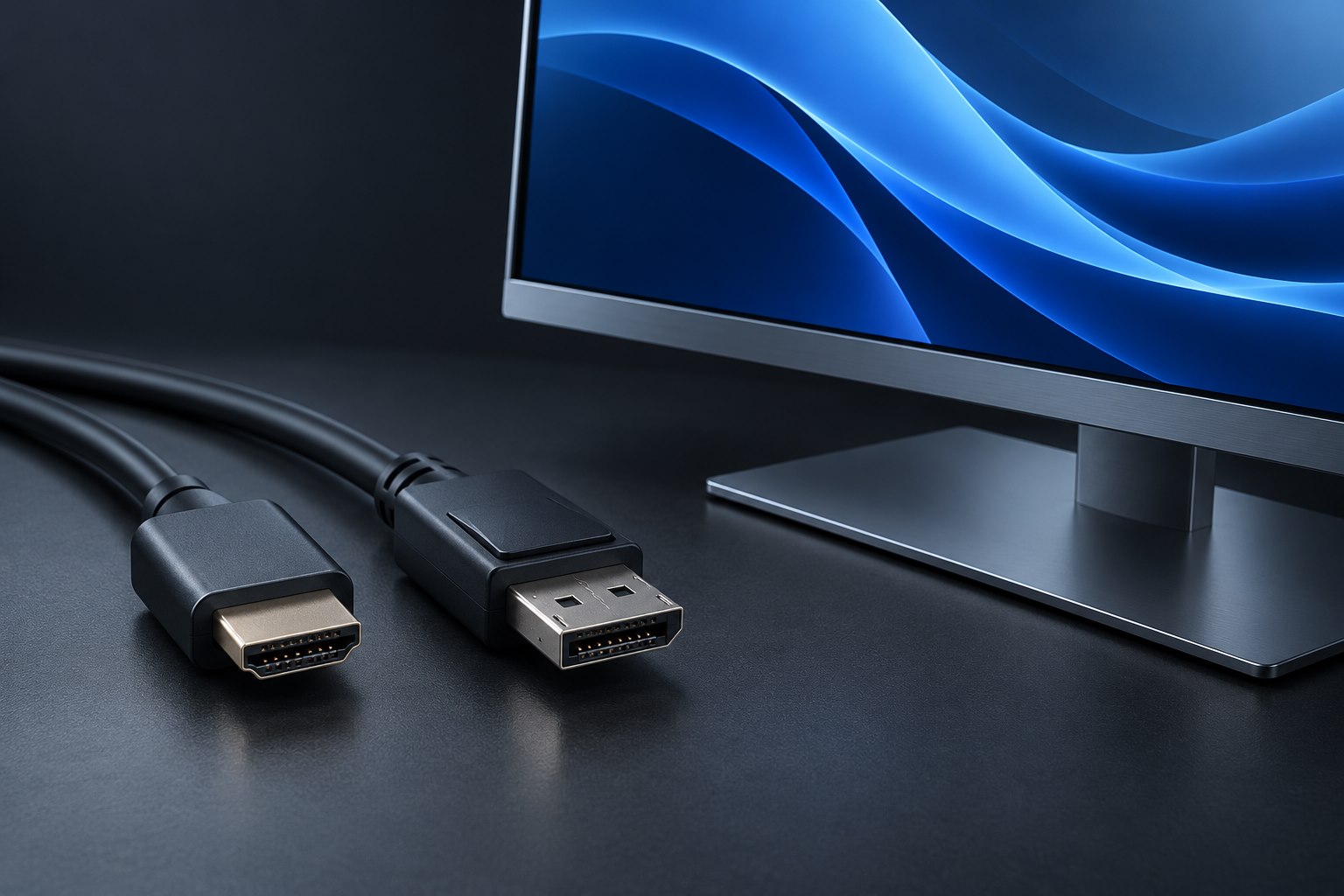
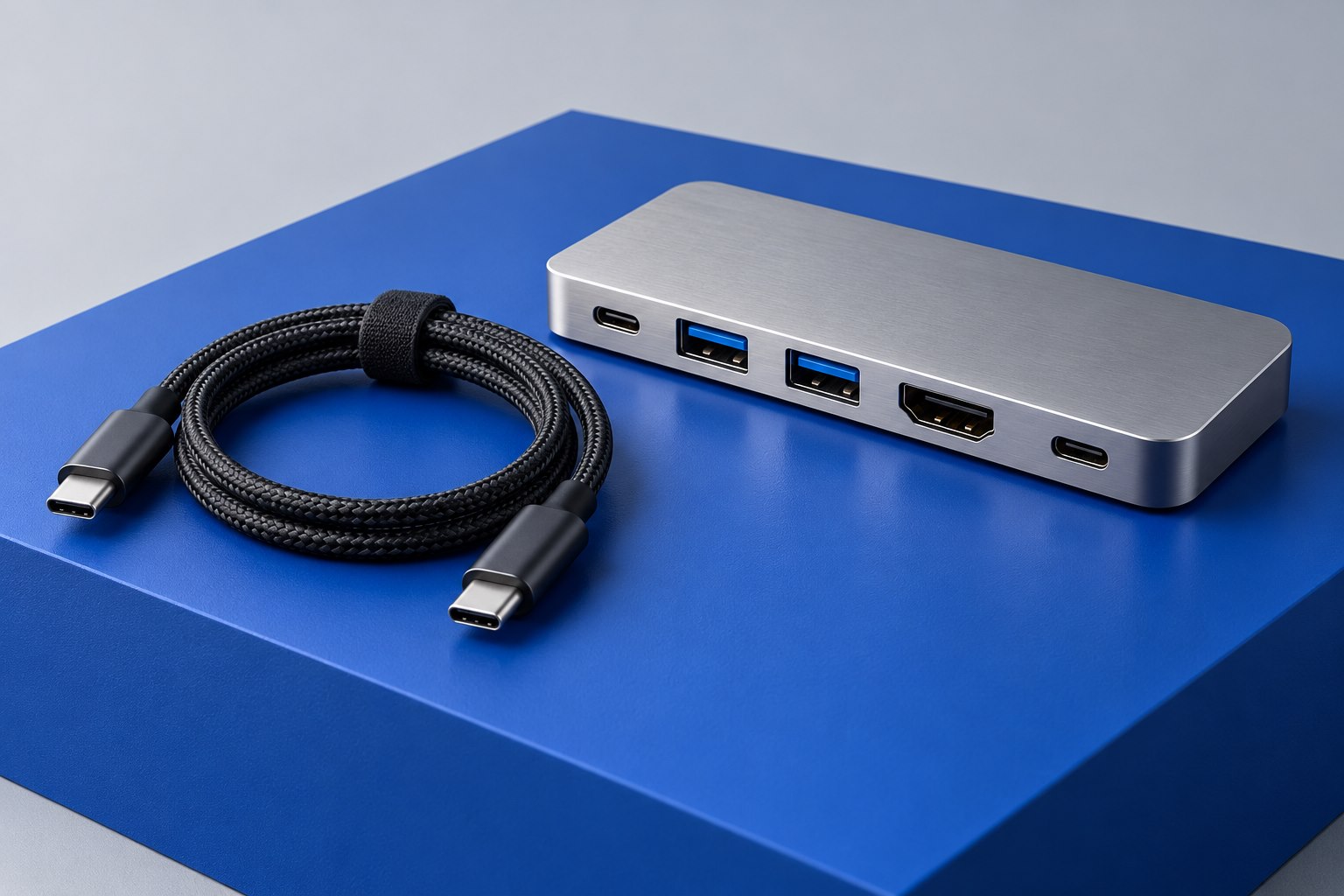
Many printers use a square-looking USB-B connector for their computer connection. A newer laptop may offer only USB-C, but a suitable cable can bridge those connector shapes without changing the printer's basic USB function. Inspect the printer's manual or the port itself before ordering. Do not confuse the computer connection with a front USB-A socket intended for a flash drive or a camera; those ports serve different roles.
Check whether the printer uses ordinary USB-B or another variant, and measure the route from the laptop's normal position. A direct cable of appropriate length is preferable to a chain of adapters under the desk. If an adapter is needed to reuse an existing cable, make sure it supports data rather than being described only as a charging accessory.
Check software before spending on the cable
A physical USB connection does not guarantee that the printer has a supported driver for the current operating system. Visit the manufacturer's support page for the exact printer model and operating-system version. Identify whether the system provides built-in support, a current manufacturer package, or a limited basic printing path. Scanning and maintenance features on multifunction printers may have separate software requirements.
This is especially useful when reviving a printer from storage. If the intended computer has no supported printing path, buying several adapter variations will not resolve the problem. Conversely, if software support is available, the connector change may be straightforward. Keep the distinction clear: the cable carries data, while the operating system and driver determine whether the computer can communicate with that model meaningfully.
Follow the model's installation order
Some printer setup procedures ask you to wait before connecting the USB cable. Others use the operating system's normal device discovery. Follow the manufacturer instructions for the model rather than a generic video covering a different printer. HP's USB setup guidance, for example, calls for a direct computer connection during setup instead of a hub or docking station. Establish that simple baseline before adding shared desk hardware.
Power on the printer, confirm that its own control panel shows a ready state, and use a known-working computer port. A printer reporting a paper or cartridge problem may be correctly connected but unable to complete a job. Distinguish that from a printer that never appears in the operating system. The symptom determines whether to inspect the USB path, installation process, or printer itself.
Make the daily connection easy to maintain
After installation, print a small test document and, for a multifunction model, check scanning if it is required. Choose a recognizable printer name so duplicate setup entries are less confusing. If the printer will later move to a hub, test that arrangement separately and retain the direct cable as a troubleshooting option. A successful direct setup is valuable evidence if problems begin after a dock is added.
Route the cable away from chair wheels and leave enough slack to move the laptop without pulling the printer's socket. Label the computer end with the printer name, especially if several similar cables meet behind the desk. When replacing the laptop again, revisit software support first. A well-documented wired printer connection can remain useful across connector changes, provided both the hardware path and the current software support are understood.
Sources & further detail
These references support the technical context. Examples and selection advice are editorial explanations; verify the documentation for your exact equipment and software.
A detail we should revisit? Send the guide URL and the relevant documentation to SmithKent5791@outlook.com.
Read the editorial policy