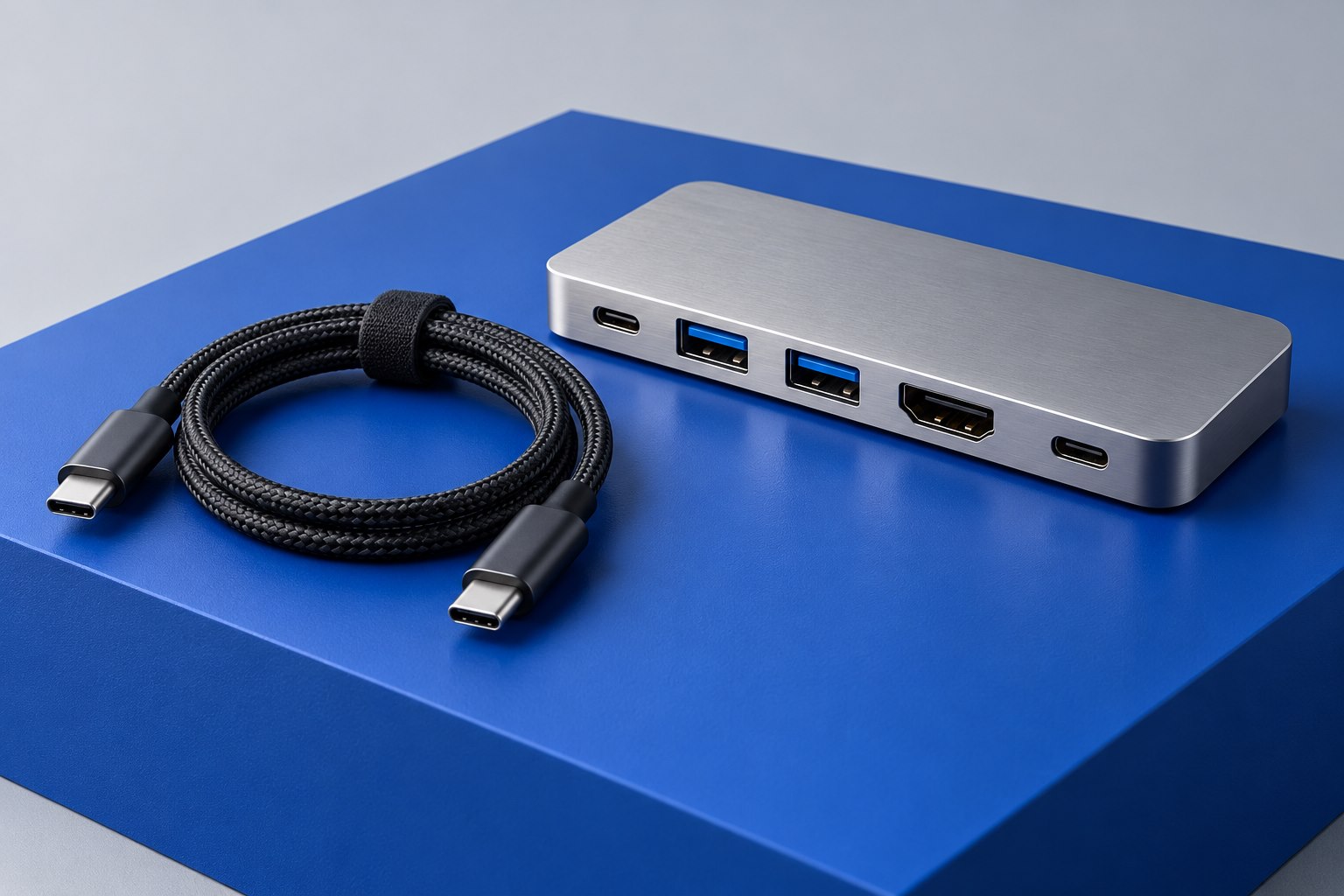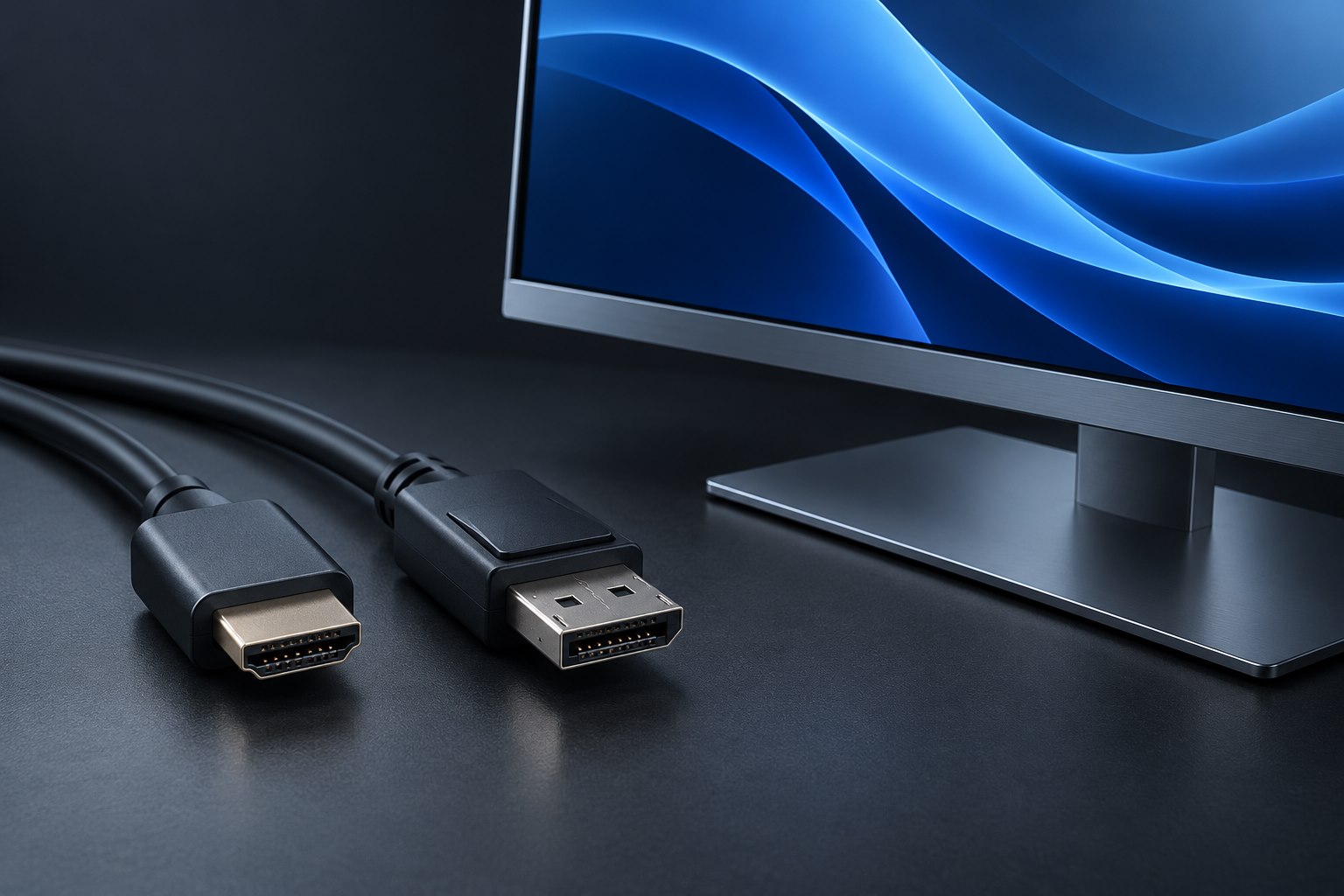
Start with the equipment already on the desk
If a monitor has two suitable inputs, you may already be able to select between a desktop and a laptop using its input menu. A USB sharing switch can then move the keyboard, mouse, and selected peripherals between the computers. This separates video selection from peripheral selection. It is less automatic than a full KVM, but it can avoid putting a demanding display signal through an additional video switch.
The arrangement works best when changing two controls is acceptable. For someone who switches computers only once each evening, that may be a reasonable tradeoff. For someone who alternates every few minutes, a single-button KVM or a monitor with an integrated switching system may be more convenient. Choose around the frequency of switching instead of assuming the most integrated device is always necessary.
Identify the host ports and peripheral ports
A USB switch has connections intended for the computers and connections intended for shared devices. Follow its diagram carefully. A normal USB hub expands one host connection; it is not a substitute for a switch connecting two hosts. Use the cables specified for the switch rather than improvising a connection between two computer USB-A sockets. Port labels such as PC1, PC2, and Devices make the intended roles clearer.
Check whether the switch requires external power and whether that power supports attached peripherals or only its own electronics. A keyboard and mouse may be easy loads, while a camera or drive can create additional requirements. The switch's upstream speed is also relevant when several devices are active. A low-speed peripheral arrangement should not be assumed suitable for large transfers simply because the connectors accept a drive.
Decide which devices should never switch unexpectedly
A webcam can be awkward to move during an active call because the application may treat it as disconnected. A printer may have a job in progress. An external drive may be writing data. These devices need a deliberate handoff, unlike a mouse that usually reconnects with little consequence. Place only the peripherals that benefit from sharing on the switch, and leave always-needed devices attached directly to their own computers.
- End or pause camera use before moving it to the other computer, then select it in the destination application if needed.
- Wait for a print job to finish before switching a locally attached printer.
- Close files and safely remove shared storage before changing its host connection.
- Keep essential authentication devices with the appropriate computer unless their approved workflow explicitly supports sharing.
Make the two-control routine obvious
Label the monitor inputs and USB switch positions consistently, using names such as Work and Personal. A small note near the switch can prevent the confusing state where the screen shows one computer while the keyboard controls the other. If the monitor supports assigning friendly input names, use them. The aim is to reduce the mental bookkeeping introduced by separating video and USB switching.
Test wake behavior on both computers and confirm that the keyboard can reconnect after each switch. Check whether a wireless receiver is happier in a general peripheral port than a specialized keyboard port, following the product manual. Once the routine is comfortable, this modest setup can be easy to maintain: a future monitor upgrade changes the video path without requiring the USB switch to support a new display bandwidth.
Sources & further detail
- ATEN: USB peripheral switching behavior
- StarTech: KVM display identification and peripheral specifications
These references support the technical context. Examples and selection advice are editorial explanations; verify the documentation for your exact equipment and software.
A detail we should revisit? Send the guide URL and the relevant documentation to SmithKent5791@outlook.com.
Read the editorial policy