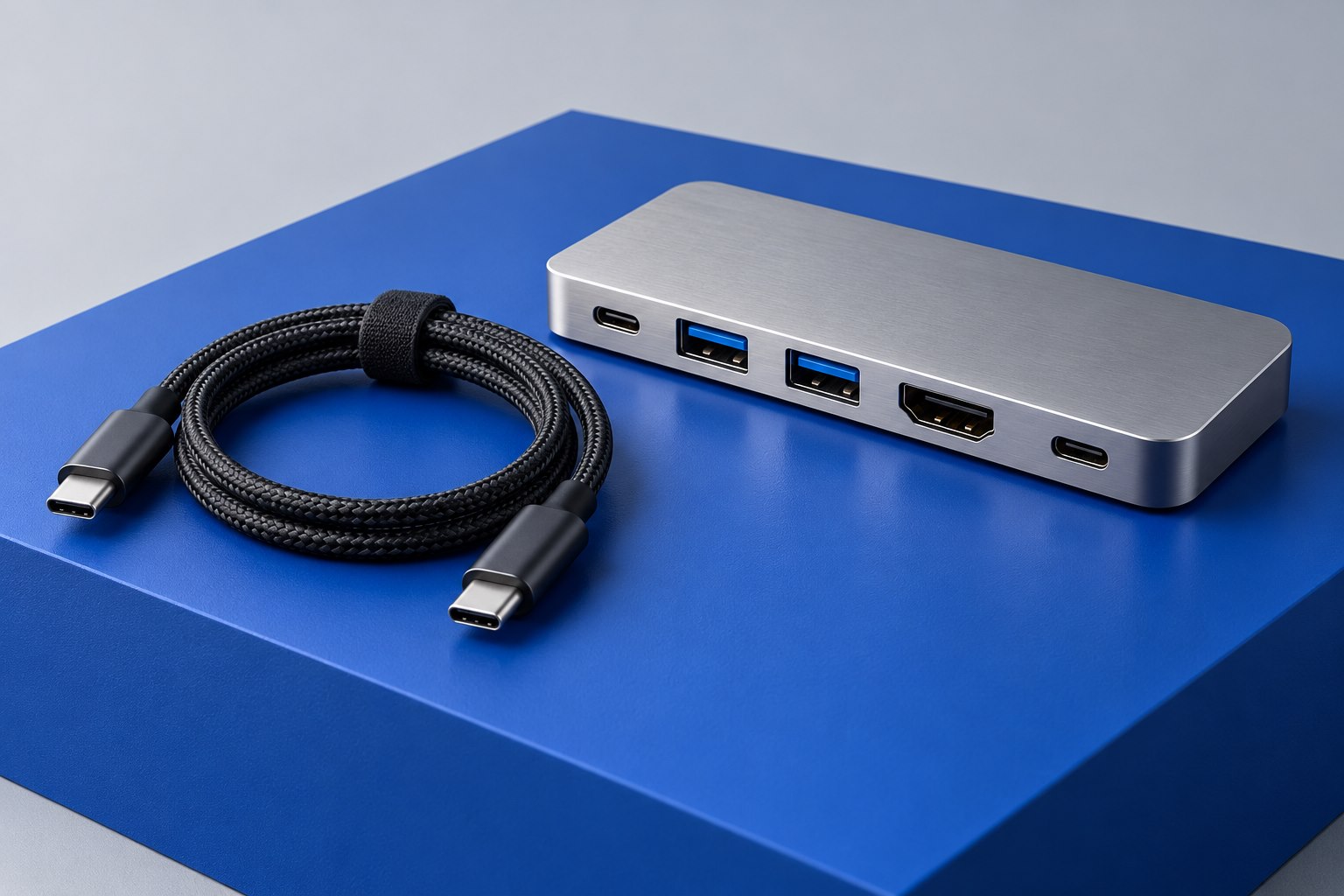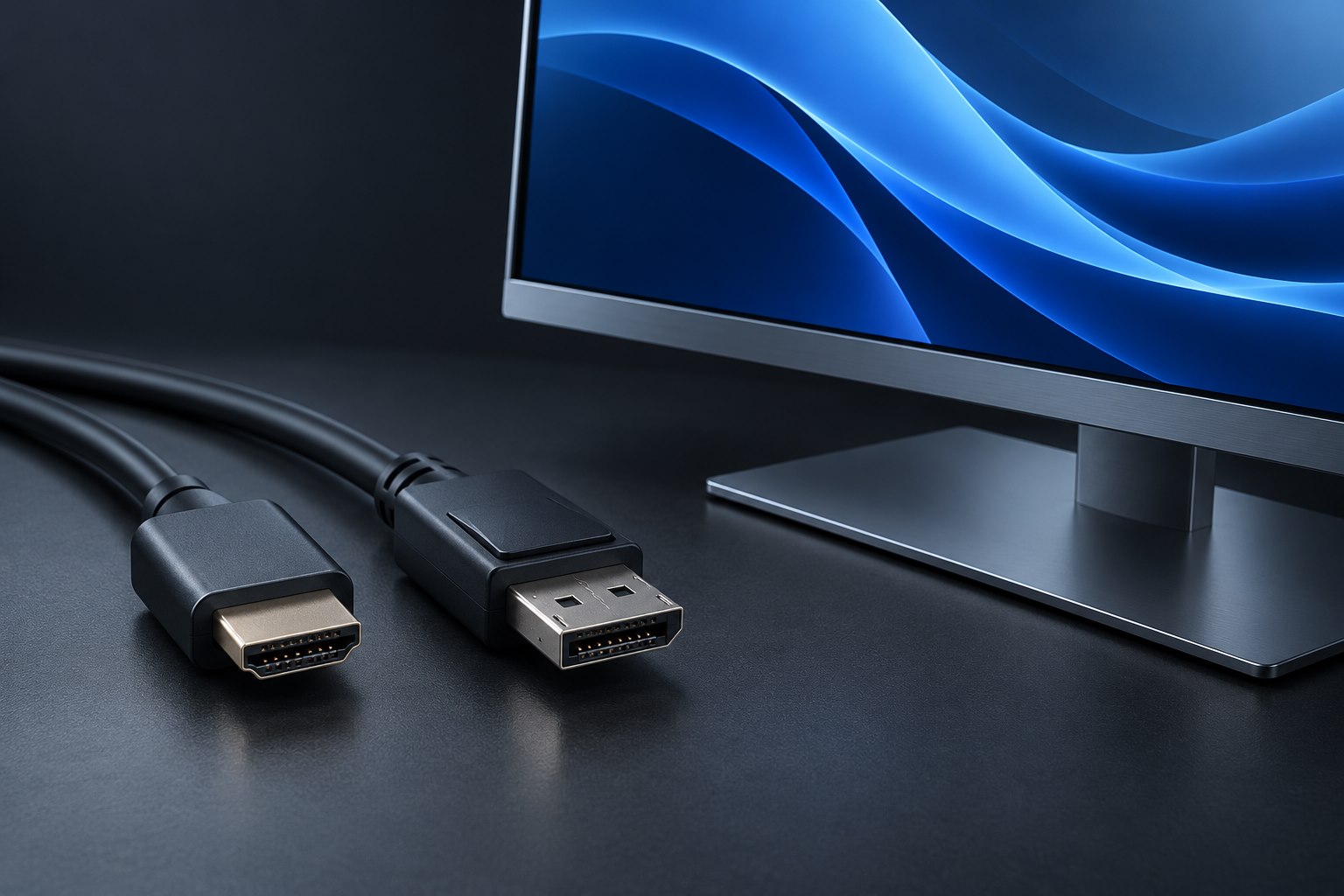
Confirm that the source can send video
The first compatibility question belongs to the laptop or tablet, not the adapter. A typical USB-C to HDMI adapter expects a supported video signal from the source, commonly through DisplayPort Alt Mode. If the source's USB-C port offers only data and charging, the ordinary adapter cannot invent native video output. Check the exact device's technical specifications and identify which port provides the required display capability.
Some accessories create video through a USB graphics system with software support. Those are a different product type, even if their external connectors look similar. For a work computer, software installation may require administrator approval. For a tablet or phone, support can be more restricted. Read the product's host and operating-system requirements carefully instead of treating every USB-C to HDMI listing as interchangeable.
Specify resolution and refresh rate together
A prominent '4K' label is incomplete unless the refresh rate and other conditions are stated. A product intended for occasional presentations may support a mode that feels less fluid for everyday desktop use. Identify the mode you want on the actual display, then confirm that the adapter supports it from your host. Also check whether the claimed performance requires a particular source capability or cable arrangement.
A projector used for slides may have modest requirements, while a desk monitor used for scrolling text and pointer movement can make a low refresh rate more noticeable. Do not buy solely for a theoretical maximum resolution you will never select. A clearly documented adapter for the normal mode is often a better choice than a vague listing promising several impressive numbers without explaining how they fit together.
Choose between a dongle and an adapter cable
A dongle with an HDMI socket lets you reuse different HDMI cable lengths. An integrated USB-C to HDMI cable reduces the number of detachable joins and may be tidier at a fixed desk. The tradeoff is flexibility: if the cable is damaged or the room requires a longer run, the integrated assembly must be replaced. Consider how the accessory will travel and how often its destination changes.
Check strain and clearance. A rigid adapter attached directly to a thin laptop can protrude into a neighboring port or create leverage if the cable is pulled. A short flexible lead may sit more comfortably, but it still needs support when a heavy HDMI cable is attached. For a wall-mounted display, verify that the HDMI plug can fit without forcing the cable against the wall.
Test with the display you will use
Connect directly for the first test, select the appropriate display input, and choose the intended mode in the operating system. If the picture is absent, verify the source port before swapping random cables. If the picture appears only at a lower mode, inspect the adapter's conditions, HDMI cable rating, and display input capabilities. Each part can limit the final result.
For a presentation kit, test audio output as well as video if sound is required, and keep a plain connection note with the adapter. A spare compatible HDMI cable can help isolate a room cable problem, but it cannot overcome an unsupported source. Save the adapter model and product documentation. When the laptop is replaced, revisit compatibility instead of assuming the old dongle's successful history guarantees the same behavior on the new machine.
Sources & further detail
These references support the technical context. Examples and selection advice are editorial explanations; verify the documentation for your exact equipment and software.
A detail we should revisit? Send the guide URL and the relevant documentation to SmithKent5791@outlook.com.
Read the editorial policy