Separate the bag job from the desk job
A travel hub is useful when you need a few connections in changing locations: a projector today, a card reader tomorrow, and a mouse at a temporary desk. A desktop dock is easier to justify when the same devices remain connected every day. Before comparing specifications, write down how often the accessory will move and which connections must be available at the same time. Carrying an oversized dock for one HDMI socket is a different compromise from repeatedly rebuilding a permanent workspace around a tiny hub.
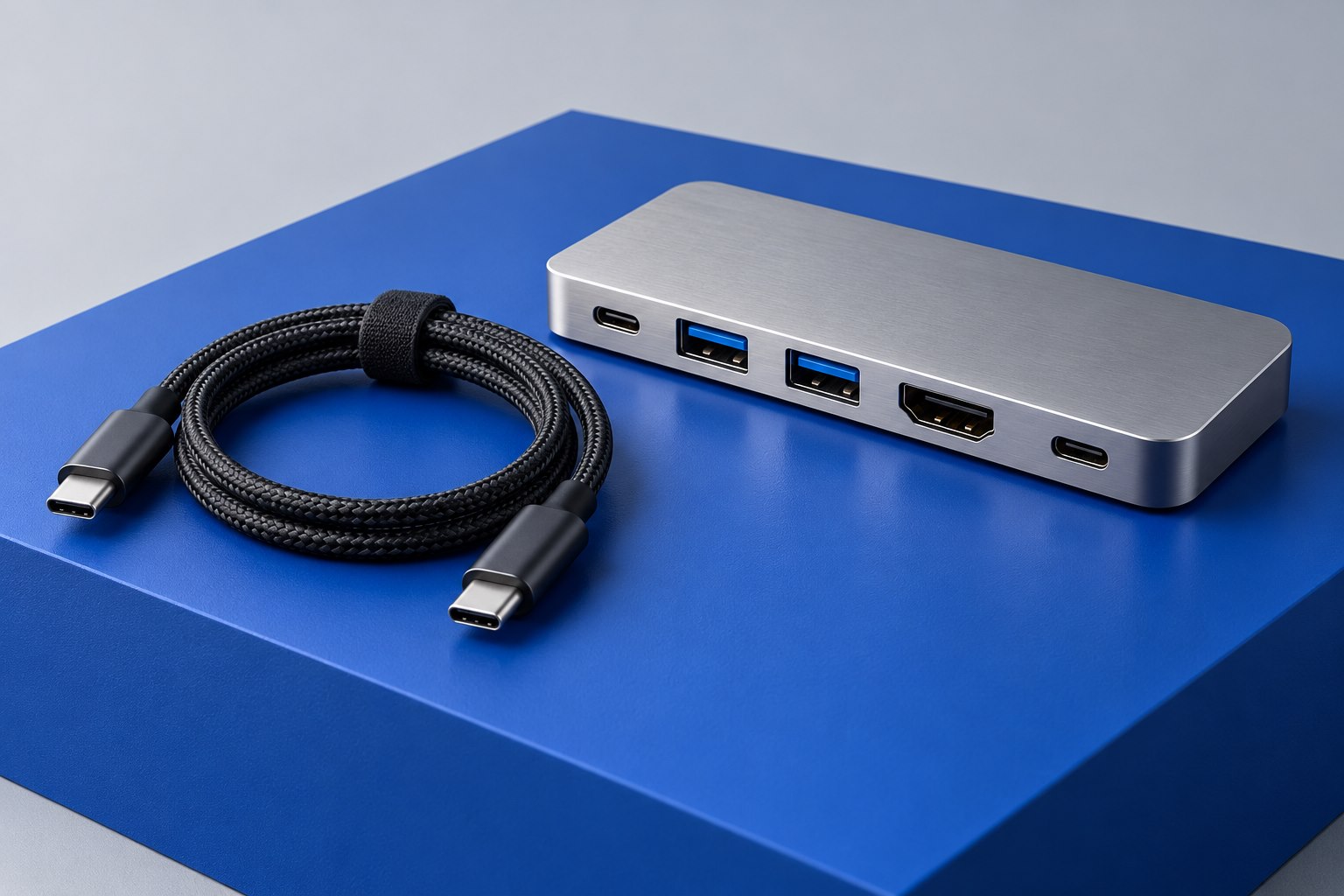
Consider the attached host cable. A short captive cable saves a loose item in a bag, but it can leave a hub hanging from a laptop stand. A replaceable cable offers routing flexibility and makes a damaged lead easier to replace, provided the replacement meets the required specifications. Include the cable and power supply in your size comparison rather than judging only the metal enclosure.
Decide whether power must come with it
Many compact hubs run from the computer and offer an input for charging passthrough. That does not mean a wall adapter is included. A desktop dock commonly has its own supply, though the product contents still need checking. If you want one item to connect and charge the laptop at work, compare the delivered host power and the complete package. A hub plus a separate adapter can occupy more bag space than the product photograph suggests.
For a presentation kit, charging may be optional for a short meeting but essential for an afternoon workshop. Plan around the longer realistic session. Avoid relying on an unknown room charger or an underpowered USB socket on the display. Keep the laptop's usual power option available until the portable combination has been checked with the equipment you use.
Prioritize the ports you cannot improvise
List must-have connections first and occasional ones second. A network adapter or memory-card reader can sometimes be a separate small accessory, while a particular display mode may dictate the hub itself. Read the video compatibility requirements closely: a hub cannot create native USB-C display output on a host that lacks it. Products that use USB graphics software are a different category and should be identified clearly before purchase.
Port spacing matters when several plugs are attached. A wide wireless receiver can block an adjacent socket; a stiff HDMI cable can twist a very light hub. Look for photographs with devices connected and check the orientation of ports around the enclosure. For a permanent installation, rear-facing sockets can make the desk calmer. For travel, clearly visible labels may be more valuable than hiding every cable.
Evaluate setup time as part of the purchase
Count how many actions the accessory removes from your normal routine. A desktop dock that reconnects the display, camera, and keyboard with one host cable can earn its space even if some ports remain unused. A travel hub should be simple enough to deploy without searching for a proprietary supply. These are different definitions of convenience, and neither requires buying the largest available product.
After unpacking, test the intended configuration from a cold start and after sleep. Check that the hub sits securely with all cables attached and that the power lead reaches an actual outlet. Pack and unpack the travel setup once before taking it to a meeting. Keep a brief connection note in the pouch if the display and power ports look alike; a minute of labeling can remove repeated uncertainty later.
Sources & further detail
These references support the technical context. Examples and selection advice are editorial explanations; verify the documentation for your exact equipment and software.
A detail we should revisit? Send the guide URL and the relevant documentation to SmithKent5791@outlook.com.
Read the editorial policy