A band is not the internet plan
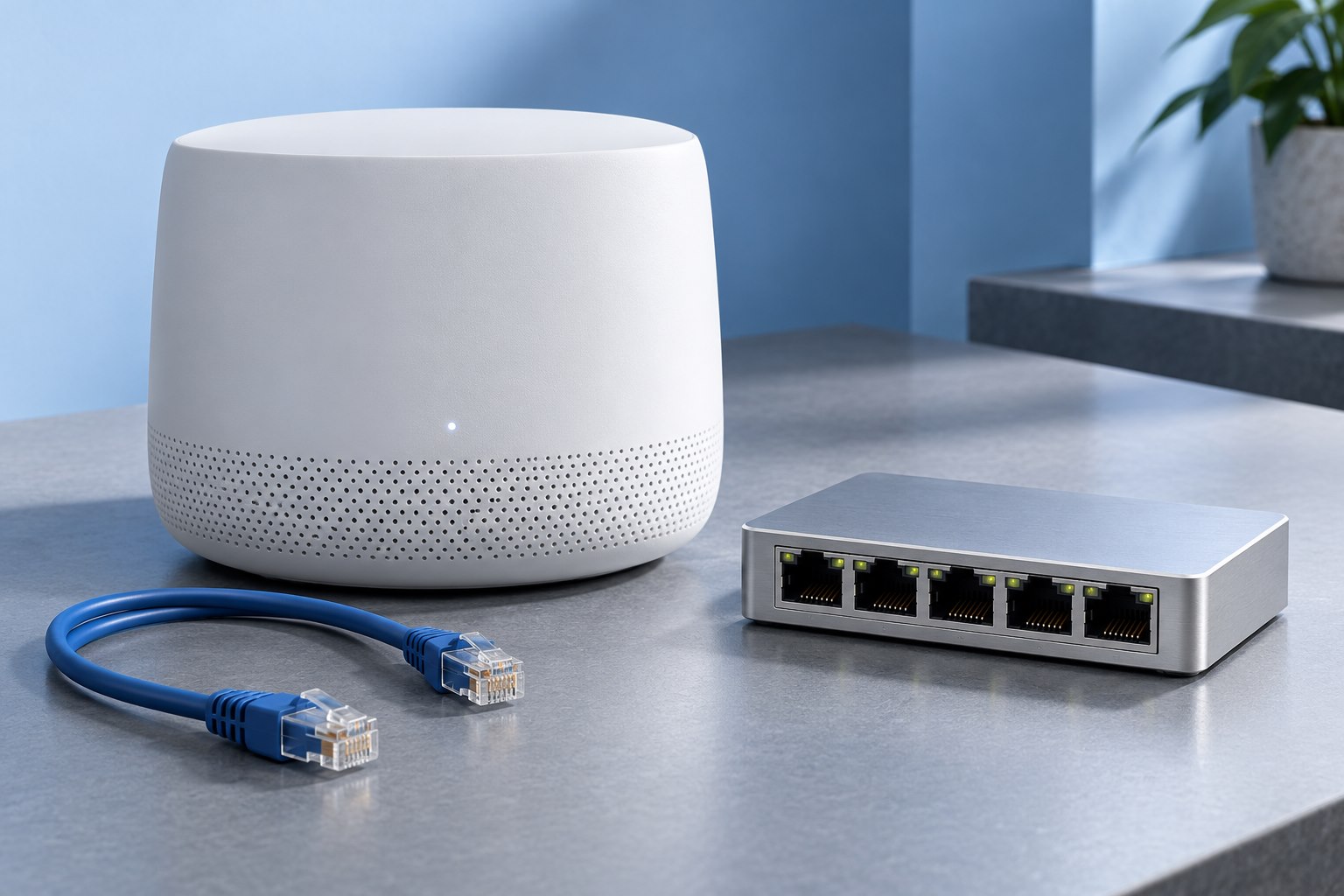
Wi-Fi bands describe the radio frequencies used inside the local network. Your internet plan describes the connection beyond the router. A phone can have a strong wireless link while a remote service is slow, and a fast internet plan can be limited by a poor local link.
Begin by checking which bands the router and client both support. A 6 GHz-capable router cannot make an older 5 GHz-only phone use 6 GHz. Wi-Fi 6E extends compatible Wi-Fi 6 equipment into the 6 GHz band, as TP-Link's technical comparison explains. Product names and generation labels should be read with the supported-band list.
Availability of 6 GHz spectrum and permitted channels also depends on region. Use equipment and settings intended for where it operates.
Distance and obstacles change the useful choice
Lower-frequency 2.4 GHz can be useful for devices farther away or behind obstacles, while 5 and 6 GHz can provide more suitable capacity in favorable conditions. This is a general tradeoff, not a promise that one band always reaches farther in every building. Antenna design, power limits, wall materials, and interference all matter.
A small sensor sending occasional status messages does not need the same throughput as a laptop moving a large project. A reliable modest link can be the better result for the sensor. Conversely, a nearby laptop with suitable hardware may benefit from a less crowded higher band.
Do not force every device onto the newest available band merely to make the settings look modern. Match the connection to the device's actual needs and support.
One network name can simplify everyday use
Many routers present several bands under one network name and help clients choose a suitable connection. Apple's router recommendations favor consistent network naming for compatible multiband operation. This can make ordinary movement around the home less complicated than manually switching between several names.
Some older accessories have setup requirements that need special attention. A device that supports only 2.4 GHz may require a particular onboarding procedure, even when the router normally combines bands. Follow the accessory and router instructions before separating networks permanently.
If you temporarily change a setting for setup, record what you changed and restore the intended arrangement afterward. A one-time installation problem should not leave the main network in a poorly understood state.
Channel width is another tradeoff
Wider channels can carry more data under favorable conditions, but they occupy more spectrum and are not always the best choice in a crowded environment. Automatic settings recommended by the router maker are a sensible starting point. Avoid copying a channel-width setting from a different country or building.
On 2.4 GHz, conservative channel width can help coexistence where many networks share limited space. On higher bands, the useful width depends on supported hardware and available spectrum. A headline maximum assumes conditions that may not exist in your apartment.
Judge the result by consistency and the task, not only by the largest link-rate number shown in settings.
Run a small comparison
Use the same laptop or phone in two or three important locations. Test a normal video call, a local file transfer if available, and a speed test at similar times. Record the band and signal information the device exposes.
A local transfer helps reveal the wireless path without depending on a remote internet server. An internet test includes more of the route. If one changes while the other does not, that difference is useful evidence.
Do not change bands, router position, and client drivers in one step. A controlled comparison makes it easier to identify whether the band choice is actually responsible.
Keep compatibility and security together
Use supported security settings across the bands and keep router and client software current. A new band should not require weakening the whole network to accommodate one old accessory. Where necessary, investigate a documented separate network arrangement for that device.
Review the setup when adding a major new client or changing router hardware. A configuration chosen for older devices may no longer be the best fit, but it should be changed based on observed needs.
The useful outcome is a dependable connection for each task. Band labels describe the available tools; placement, compatibility, and measured behavior determine which tool works best in a particular room.
Sources & further detail
These references support the technical context. Examples and selection advice are editorial explanations; verify the documentation for your exact equipment and software.
A detail we should revisit? Send the guide URL and the relevant documentation to SmithKent5791@outlook.com.
Read the editorial policy