The labels describe different layers
Matter and Thread are related in many smart-home products, but they are not the same thing. Matter defines how compatible smart-home devices communicate at the application level. Thread provides a low-power mesh networking technology that some Matter devices use. Other Matter devices can communicate over Wi-Fi or Ethernet.
The Thread Group's FAQ explains this relationship and the role of Bluetooth Low Energy in setup. A box that says Matter does not automatically mean that the product uses Thread. Read the connectivity specification for the exact accessory before deciding what additional equipment is required.
This distinction prevents a common purchase mistake: buying a Thread border router for an accessory that actually uses Wi-Fi, or buying a Matter-over-Thread accessory without a way to connect its Thread network to the rest of the home.
A controller and a border router do different work
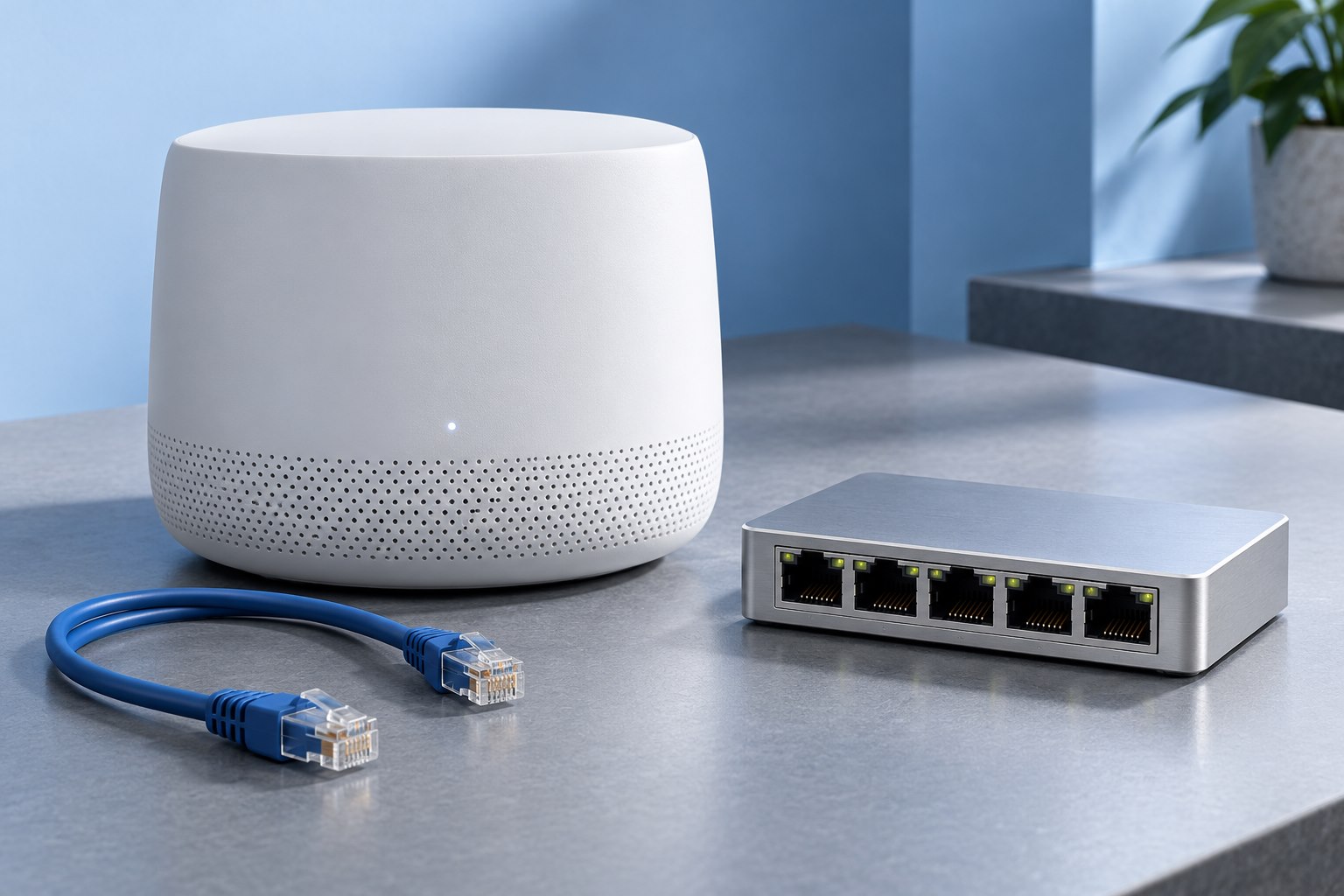
A Matter controller manages the accessory within a compatible smart-home system. A Thread border router connects a Thread network to other IP networks, such as the home network. One physical product can provide both roles, but the roles remain separate.
Some speakers, displays, routers, or hubs include one or both functions. Check the exact model and software support rather than assuming every device in a product family includes them. A familiar-looking smart speaker from an older generation may not provide the same capabilities as a newer one.
If several platforms are involved, confirm the supported sharing or multi-admin process. Do not assume that adding a device to one app automatically makes it available in every other app.
Write down the required pieces
For a Matter-over-Thread accessory, identify a compatible controller and Thread border-router function, plus the phone and app used during setup. For a Matter-over-Wi-Fi accessory, identify the compatible controller and supported Wi-Fi network requirements. The setup code belongs to the accessory and should be kept with its documentation.
A product may also offer manufacturer-specific features through its own app. Matter support can provide a common set of functions while advanced settings remain elsewhere. Compare the functions you need, such as schedules, energy information, or firmware management, instead of treating the compatibility logo as a promise of identical interfaces.
If a feature depends on a cloud account, note that separately from local control. The network transport and the service dependency answer different questions.
Place Thread equipment as a network
Thread is designed as a low-power mesh, but that does not make placement irrelevant. Building materials, device roles, and power state affect the available paths. A small battery accessory should not be assumed to relay traffic for other devices simply because it uses Thread.
Keep the border-router device in a suitable open location and powered as required. If it is built into a smart speaker that someone regularly unplugs, that habit can affect the system. Think about the infrastructure role as well as the product's more visible function.
Adding more border routers can support resilience in a compatible design, but configuration and credential sharing matter. Follow the ecosystem's current guidance rather than assuming any unrelated Thread device will merge automatically into one seamless network.
Do not let isolation break local discovery
Guest networks and device-isolation settings can prevent a phone, controller, and accessory from communicating as setup expects. TP-Link's isolation documentation illustrates how local smart-home control can be affected by those boundaries. Keep the required devices on a supported arrangement.
If setup fails, check network membership, app permissions, software versions, and the accessory's reset or commissioning state. Avoid repeatedly factory-resetting every hub. A code that was already used or a device still associated with another controller can require a specific removal or sharing process.
Save the setup code securely before placing the accessory somewhere difficult to access. A photograph or documented record can be useful, but avoid publishing it in a public troubleshooting post.
Test local behavior and maintenance
After installation, operate the accessory through the intended controller and verify the functions you bought it for. Check how firmware updates are delivered and who will maintain the account or hub. A working on-off command is only the beginning if the purchase depends on automation or other features.
Where the vendor documents local operation, test it through the supported procedure without disrupting safety-critical equipment. Learn which features still require an internet connection. This makes future outages less confusing.
A useful smart-home plan names each role clearly: accessory transport, controller, border router if needed, and any cloud service. Once those pieces are explicit, compatibility claims become easier to evaluate and unnecessary hub purchases are easier to avoid.
Sources & further detail
These references support the technical context. Examples and selection advice are editorial explanations; verify the documentation for your exact equipment and software.
A detail we should revisit? Send the guide URL and the relevant documentation to SmithKent5791@outlook.com.
Read the editorial policy