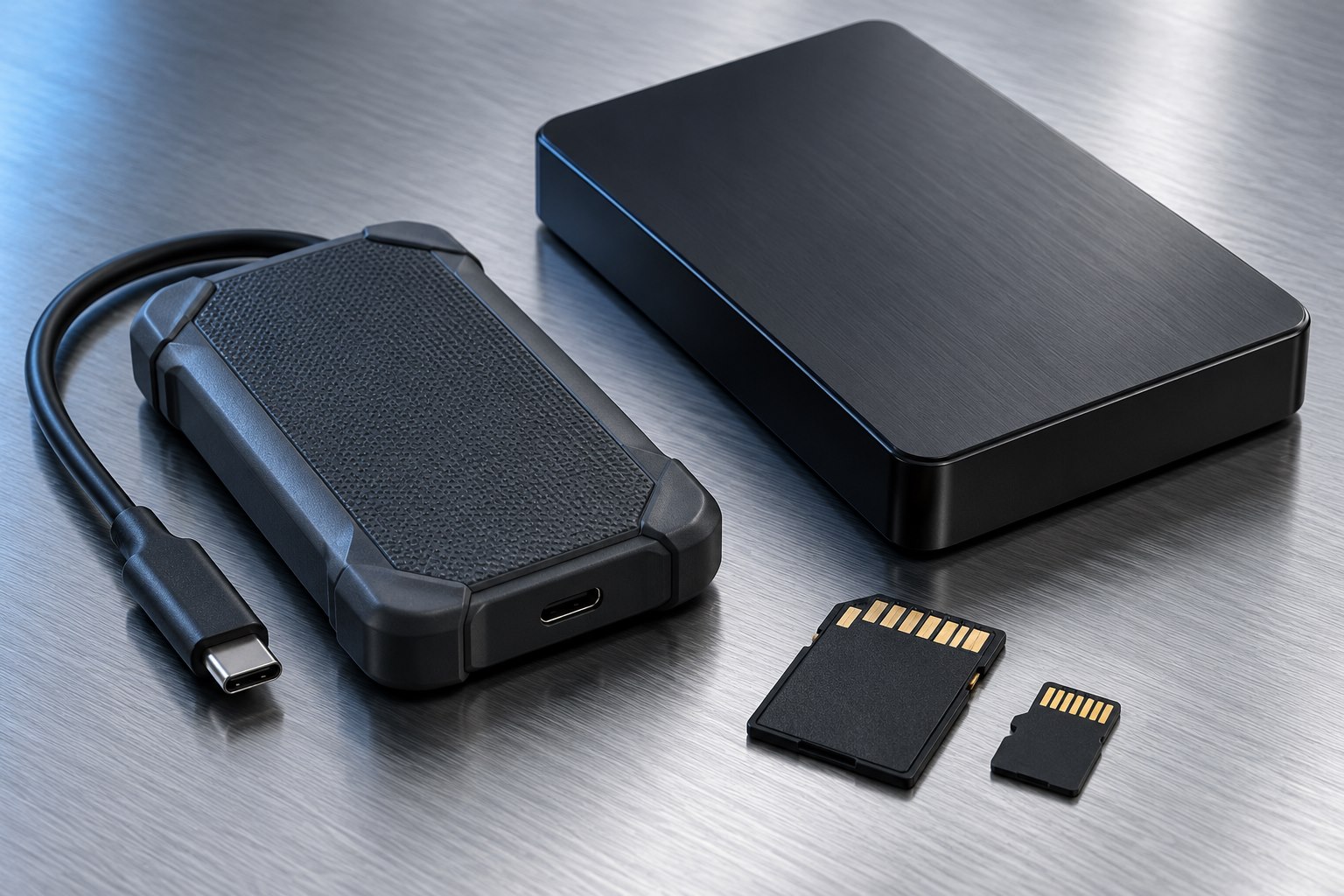
List every reader and writer
A drive format determines how files are organized and which devices can work with them. Begin with a list of the computers, tablets, cameras, or other equipment that will use the drive. Record whether each needs to read files, write files, or run a particular application directly from the storage. Reading support and writing support are not always the same.
A drive for one Mac has a different job from a handoff drive shared between Windows and macOS. A backup program may impose its own requirements. A camera or recorder may expect the format it creates itself. Choose the filesystem for the workflow, not because its name sounds newer.
Understand the common choices
Apple's Disk Utility documentation distinguishes APFS, Mac OS Extended, and Windows-compatible formats such as exFAT. APFS is a common choice for modern Mac-focused storage, including supported encrypted configurations. exFAT is often useful for exchanging files between current systems that support it. NTFS is common on Windows, while default Mac support may not include writing to it.
Compatibility is not the only difference. Filesystems vary in how they handle metadata, permissions, recovery behavior, and application expectations. A format that works for moving a video file may not be the recommended location for a particular editing library or backup set.
FAT32 remains relevant to some older or embedded devices, but its individual-file size limit can be a problem for large video or archive files. If a copy fails even though the drive has ample free space, investigate the filesystem's limits before assuming the storage is defective.
Make the choice concrete
For a drive passed between a current Windows PC and Mac, exFAT may be a practical exchange format after both systems are checked. For a Mac-only working library, follow the application's supported format guidance. For a Windows backup drive, follow the backup tool's requirements rather than choosing solely for possible future sharing.
A tablet adds another compatibility check. Apple documents supported formats and partition requirements for external storage on iPad. Other devices may have narrower support. Confirm that the entire arrangement is supported, including the number of partitions, rather than assuming a familiar connector makes the drive usable.
When several jobs conflict, two drives can be simpler than one complicated partition scheme. A dedicated backup destination and a separate exchange drive make it harder to overwrite backup data during an ordinary handoff.
Formatting is an erasing operation
Before changing a format, copy any needed files elsewhere and open a sample of that copy. Check the physical drive identity in the disk utility, especially when several external devices are attached. Capacity and a deliberately chosen volume name can help distinguish the target, but inspect the full device information too.
Do not respond to an unexpected format prompt on a valuable drive by clicking through. It may indicate an unsupported filesystem, connection trouble, or damage. Stop and investigate while the existing data remains intact.
For a new empty drive, select the intended format and partition scheme according to the device maker's instructions. Give the volume a useful name that describes its role, such as Project Exchange or Home Backup, without including sensitive information.
Test the whole route
Copy a small file and one representative large file, then safely eject the drive. Reconnect it to every system that will use it. Open the files, edit a disposable copy where writing is required, and confirm that filenames and folders behave as expected.
If a program stores a library or database on the drive, test through that application rather than only through the file manager. A program can have stricter requirements than the operating system's basic file support. Keep the original library until the new arrangement is proven.
Document the chosen format in your storage inventory. Months later, that note can explain why a drive behaves differently on another computer. A good format choice is one you can describe in terms of supported devices and tasks, with a verified copy of the data available before any future change.
Sources & further detail
These references support the technical context. Examples and selection advice are editorial explanations; verify the documentation for your exact equipment and software.
A detail we should revisit? Send the guide URL and the relevant documentation to SmithKent5791@outlook.com.
Read the editorial policy