Start with the intended call or recording
A webcam may advertise a high capture resolution while the meeting service sends a lower-resolution stream depending on settings and connection conditions. If the main task is routine video calls, a clear well-lit image at the service's supported mode can be more useful than the largest sensor output. If you record locally and crop the image, extra resolution may provide practical flexibility. Identify the application and final use first. Check which combinations of resolution and frame rate the camera supports rather than assuming every advertised maximum is available at the same time.
For a local tutorial that later crops into a smaller face window, extra capture pixels may preserve useful detail. For a meeting where participants see you in a small grid tile, consistent exposure and intelligible audio may produce a larger practical improvement. The same camera can therefore be a worthwhile upgrade for one task and an unnecessary expense for the other.
Improve the light before blaming the camera
A bright window behind you can make the camera choose between a dark face and an overexposed background. Move the desk or use a soft light from in front and slightly to one side where practical. Avoid a small harsh source aimed directly into the eyes. Check the image at the time of day when calls normally occur, because daylight changes. Better placement of existing light can improve the picture without buying another camera. Automatic exposure and white balance are useful, but they cannot make every lighting arrangement look equally natural.
Look at focus and field of view
A very wide view can reveal more of the room than you want and make the person appear small. Digital cropping can tighten the frame, but it uses only part of the captured image. Check whether the camera offers selectable views and how they behave at the intended resolution. Autofocus is helpful when distance changes, yet some cameras may hunt if objects move near the lens. For a fixed desk, a suitable manual-focus setting can be more consistent if supported. Test reading, gesturing, and holding an object up to the camera rather than only sitting still for a preview.
A camera's field-of-view specification may be measured diagonally rather than horizontally. Compare the actual preview at your desk instead of trying to translate one angle into a guaranteed framing distance. If you frequently show a product or handwritten page, test focus at that closer distance as well as at your normal seated position. Check whether returning the object to the desk causes focus to recover promptly on your face.
Check mounting and software access
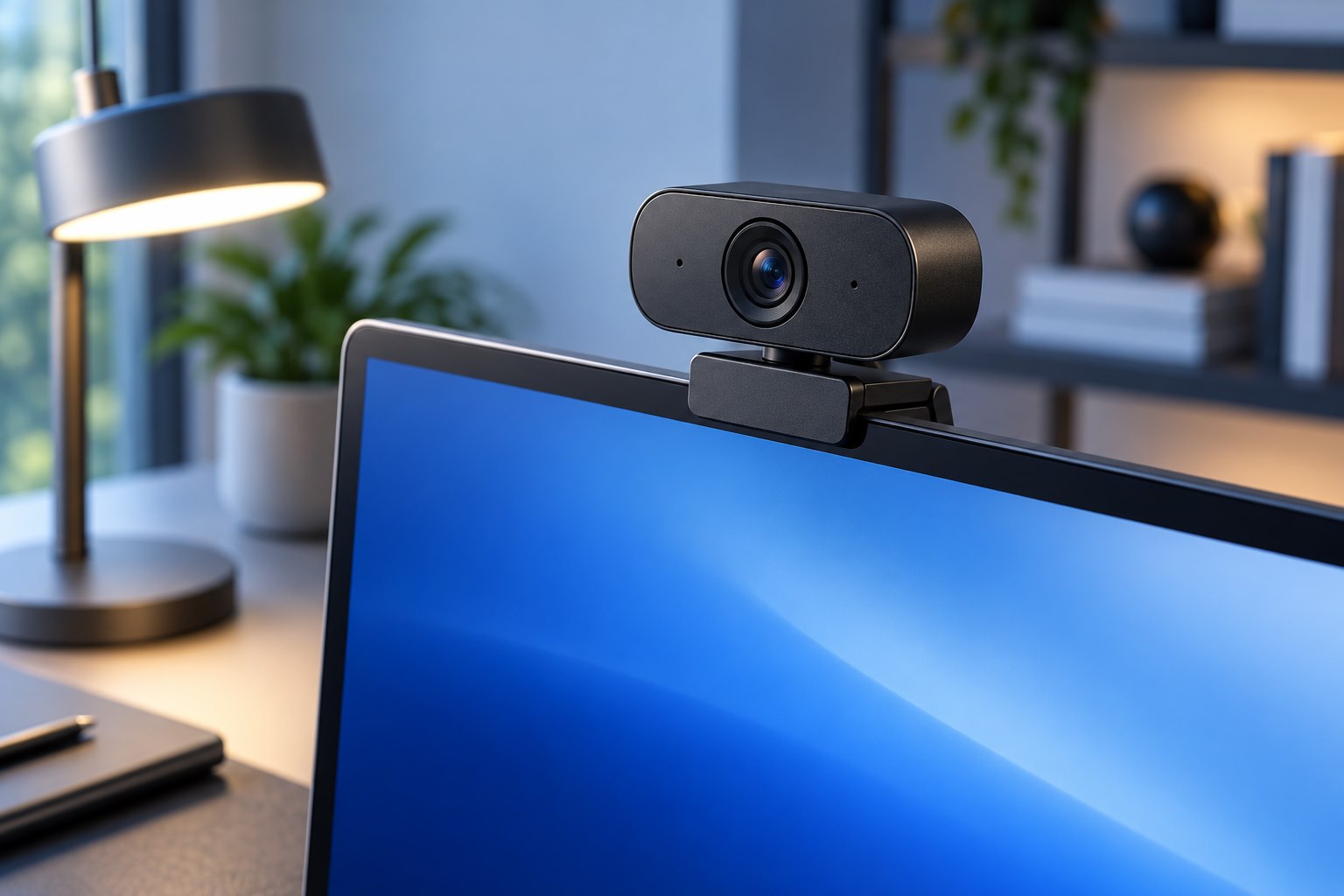
The camera must sit securely on the monitor without covering the image or pressing on a delicate panel. A tripod thread or separate stand can be useful when the screen is too thin or an unusual shape. Confirm cable length and connector requirements, and check whether essential controls require companion software. On a managed computer, those controls may be unavailable even when basic video works. A physical privacy shutter is convenient if it closes fully and is easy to identify. Remember that covering the lens does not necessarily mute a separate microphone built into the same device.
Judge a recording, not just the preview
Make a short recording or test call in the intended application. Look for exposure changes when you move, unnatural color, missed focus, and motion blur during gestures. Compare with the built-in camera under the same lighting before deciding an upgrade is worthwhile. Keep audio quality in the decision too, but do not assume webcam microphones will replace a closer headset or desk microphone in a reflective room. The useful camera produces a stable, recognizable picture with a framing and control routine you understand. Resolution is valuable when it contributes to that result, rather than simply making the product specification look larger.
Make the comparison in both daylight and the artificial light used for evening calls. A camera that looks clean in bright daylight may introduce more noise or motion blur in a dimmer room. Save a still frame and a short moving clip from each condition. The motion clip reveals issues that a flattering still image can hide, such as exposure stepping when a hand passes near the lens.
Sources & further detail
These references support the technical context. Examples and selection advice are editorial explanations; verify the documentation for your exact equipment and software.
A detail we should revisit? Send the guide URL and the relevant documentation to SmithKent5791@outlook.com.
Read the editorial policy