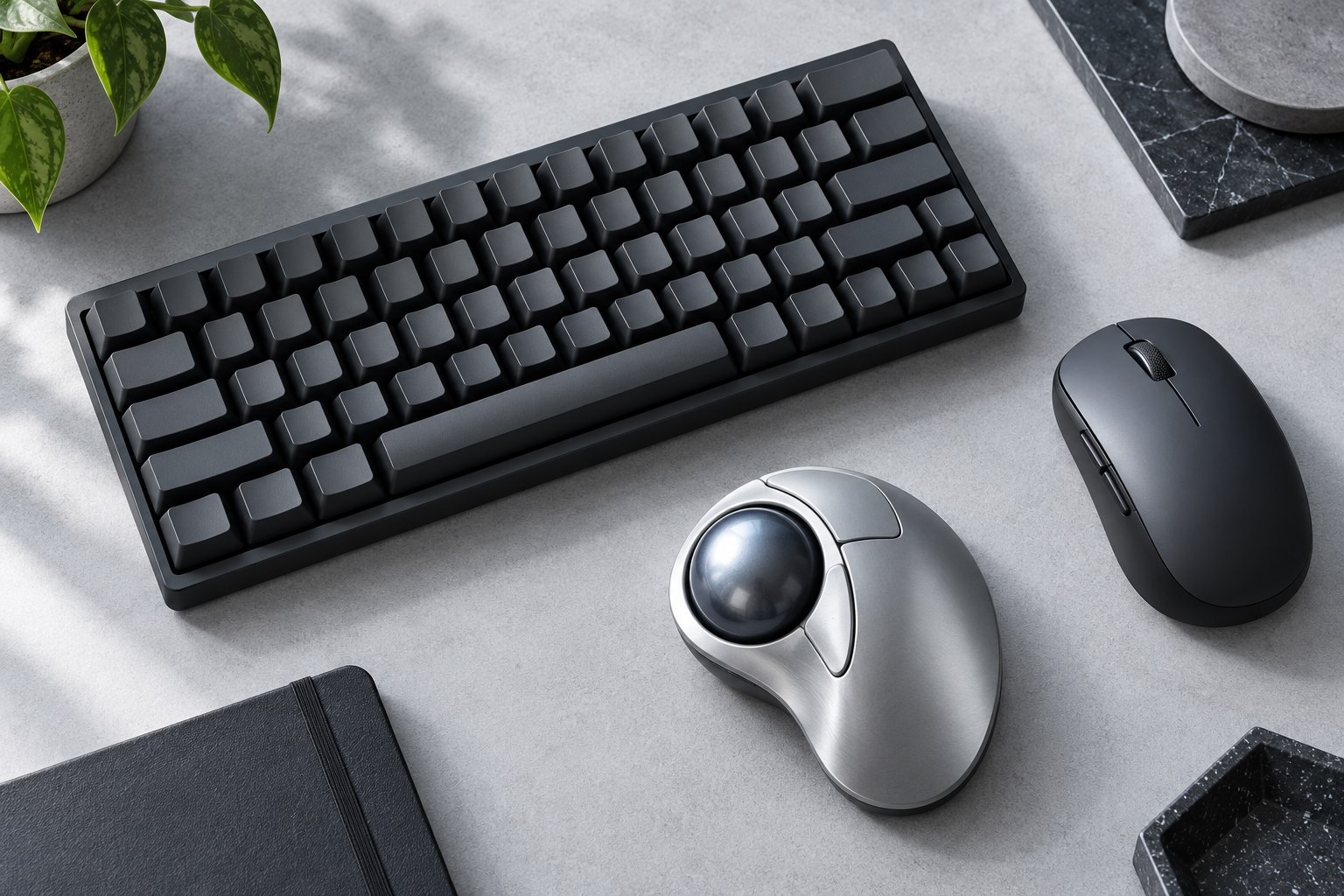
Observe how you hold the current mouse
People support and move a mouse in different ways, and those patterns can change with the task. Notice where the palm rests, which fingers guide the sides, and whether you repeatedly reposition your hand to reach buttons. A large sculpted mouse may support a relaxed palm but feel cumbersome for a smaller hand or frequent lifting. A small travel mouse can save bag space while feeling cramped during extended desk use. Measure or compare dimensions rather than relying on labels such as compact or ergonomic. The important question is whether the controls sit where your hand naturally expects them.
Try the buttons as well as the shell
Click, drag, scroll, and use any side buttons you expect to rely on. A comfortable shell can still have a scroll wheel that is difficult to press or side controls that require a grip change. Check whether the main buttons register without excessive force and whether accidental clicks occur when moving the mouse. For left-handed use, inspect the actual button arrangement; a symmetrical outer shape does not guarantee mirrored side controls. If the mouse allows reassignment, confirm that the software works on your system and that essential settings remain available on a managed work computer.
A spreadsheet user may value a comfortable middle click and horizontal scrolling more than a row of extra thumb buttons. A person editing text may care most about precise dragging without releasing the grip. List these two or three frequent actions before shopping, then try them directly; a general impression of a comfortable shell can overlook the control you use hundreds of times.
Match weight to the movement
A lighter mouse can be easier to lift and reposition, while some users prefer more resistance for ordinary pointing. There is no universally correct weight independent of grip, surface, and sensitivity. Consider the cable too: a stiff lead can create drag that makes a light wired mouse feel less predictable. Wireless models remove that lead but add charging or battery management. Test the mouse on a surface comparable to your desk mat. A smooth store counter and a textured home surface can produce a different impression of effort and control even with the same hardware.
Set pointer movement before judging accuracy
A new mouse may feel uncontrollable because its sensitivity differs from the old one. Choose a reasonable starting setting and make small adjustments while selecting text, resizing windows, and reaching across the display. Do not use the highest DPI simply because it is available. If you need more space for large movements, inspect keyboard placement before buying another mouse. A wide keyboard can push the pointer area into an awkward corner. Keep the setup focused on ordinary actions, not a brief impression from rapidly moving the cursor around an empty desktop.
Use a realistic trial
Try a normal work session, then note specific problems: thumb reach, pressure against the palm, frequent lifting, or accidental side-button presses. These observations help distinguish a shape mismatch from a setting issue. If discomfort occurs, stop and reconsider the arrangement rather than assuming a premium device must suit you. A return policy can be valuable because fit is difficult to establish from specifications. Keep the mouse that supports accurate work without constant grip adjustments. Its sensor headline and number of programmable buttons matter only after the basic shape, controls, and connection work well in the space where you use it.
Sources & further detail
These references support the technical context. Examples and selection advice are editorial explanations; verify the documentation for your exact equipment and software.
A detail we should revisit? Send the guide URL and the relevant documentation to SmithKent5791@outlook.com.
Read the editorial policy