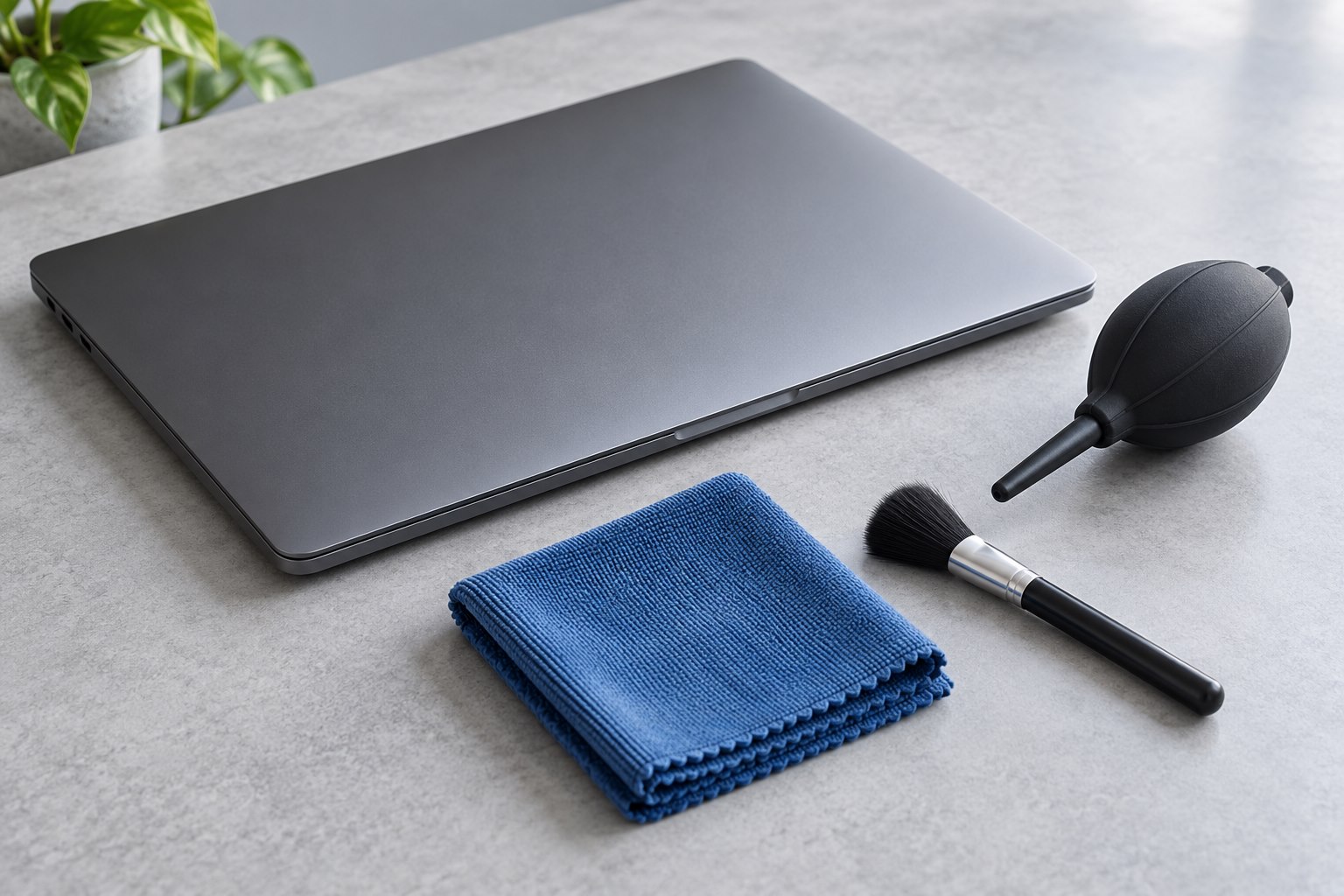
Find the intended airflow path
Laptop vents can be on the underside, sides, rear, or near the hinge, and some compact devices use different cooling arrangements. Consult the exact model's manual before assuming a grille is an intake or exhaust. Use the laptop on a suitable firm surface that leaves its designed openings clear. Soft bedding, cushions, and a crowded stand can obstruct airflow. A stand with an open design may help preserve clearance, but only if its support points do not cover the vents. The first maintenance step is a sensible operating position, not opening the enclosure or buying a powerful blower.
Inspect before choosing a cleaning method
Turn the computer off and disconnect external power and accessories according to the manufacturer's guidance. Look for visible dust at accessible vents. Some makers permit carefully used compressed air, while particular models may restrict that method or require service. Follow the product-specific instructions and the air product's own directions, including orientation and distance. Do not insert tools through the vents or apply liquid to them. Avoid using a household vacuum or an improvised high-pressure source unless the manufacturer explicitly supports that procedure. Routine exterior care should not require guessing how internal fans or components will react.
Do not assume every loud fan means dust
Fan activity can change with workload, updates, room temperature, and background processes. If the fan becomes unusually loud, note what the computer is doing and whether the behavior continues at idle. Check official diagnostics or support guidance for the model. A blocked vent is one possibility, but a failing fan, software workload, or another hardware issue may require a different response. Repeatedly blasting the vents does not diagnose those causes. If the computer shuts down unexpectedly, reports a thermal warning, or makes a new mechanical noise, preserve the exact symptom and seek suitable support rather than treating it as ordinary dust buildup.
Keep a note of whether the noise comes from the expected vent area or from a new clicking or scraping sound. Describe it plainly to support rather than assuming all mechanical noise is normal airflow. A short recording made from outside the device can help if it can be captured without obstructing vents or continuing unsafe operation.
Keep exterior care separate from internal service
Removing the bottom cover can expose batteries, delicate connectors, and parts requiring specific handling. Do not turn a simple cleaning task into internal disassembly without the correct service instructions, tools, and competence. Some computers have service modes or procedures that are not obvious from the outside. If external cleaning does not resolve the issue, obtain a diagnosis or an approved service route. Explain what has already been done so the technician does not need to guess. Keeping the scope controlled protects both the device and the evidence needed to understand the original problem.
Check the setup after cleaning
Reconnect the device and use a normal workload, observing whether airflow and fan behavior have returned to the expected pattern. Do not deliberately stress an unstable computer merely to prove the cleaning worked. Keep the desk surface and stand free of loose dust, and leave clearance around exhaust areas. If the laptop travels, inspect the bag for debris that could gather around openings or ports. A short periodic check is usually easier than responding to a heavily clogged exterior. The aim is clear airflow and predictable operation, with persistent changes handled as a support issue rather than an invitation to keep experimenting inside the machine.
Sources & further detail
These references support the technical context. Examples and selection advice are editorial explanations; verify the documentation for your exact equipment and software.
A detail we should revisit? Send the guide URL and the relevant documentation to SmithKent5791@outlook.com.
Read the editorial policy