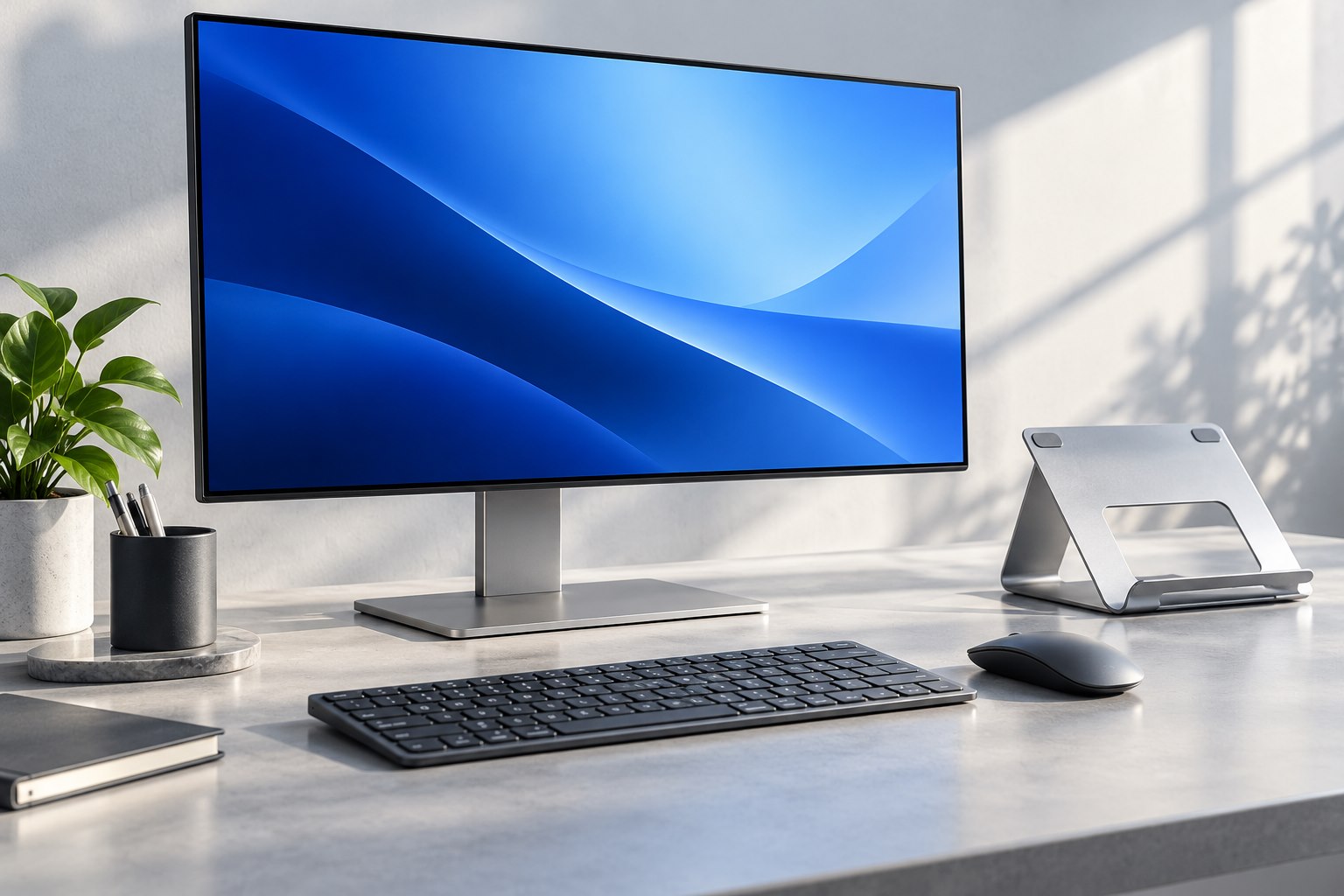
Decide whether the laptop remains an input device
Raising a laptop changes both screen position and keyboard position because they are attached. A high stand usually makes more sense with a separate keyboard and pointing device. If you intend to type directly on the laptop, check whether the stand is designed for that use and remains stable under normal key presses. A display riser selected only for screen height can leave the keyboard inconveniently elevated. Start with the role: primary screen with external controls, secondary display beside a monitor, or a temporary travel support. Those roles require different heights and levels of portability.
Check the support points
Compare the laptop's dimensions, weight, and underside layout with the stand. Retaining lips should hold the device securely without obstructing ports or pressing against a fragile edge. The support should not cover ventilation openings identified by the manufacturer. An open frame can leave more airflow space, but it still needs to match the laptop's feet and center of mass. A small tablet-style stand may look adequate in a photograph yet flex under a larger laptop. Check the rated size and load and use the stand only in the orientation the maker supports.
Measure height and depth together
A stand that lifts the screen can also move it toward or away from the chair. Place the separate keyboard where you actually type, then estimate the screen's resulting distance. If the stand sits behind a monitor or on a shallow desk, its legs may consume the space needed for cable bends. Adjustable models should lock firmly at the selected position. Test a normal opening and closing motion without allowing the device to tip. A stand should not depend on the charging cable or display cable to stop it sliding backward.
If the laptop becomes a secondary screen, place a reference document on it and work primarily on the main monitor for a short trial. Notice whether consulting the laptop requires a repeated large turn or looking around another object. Adjust its position for that real use rather than aligning its bezel perfectly with the other display.
Connections, portability, and daily use
Make room for the power connector, headphones, and any regularly used ports. A wide retaining lip can block a card slot or force a cable into a sharp bend. Leave enough slack to lift the laptop off the stand without yanking attached equipment, or establish a clear disconnect routine. If the laptop is used beside an external display, arrange their virtual positions to match the physical desk. An elevated webcam may improve the camera angle, but verify the framing rather than assuming any increase in height is beneficial. The screen and camera serve related but distinct positioning needs.
A heavy fixed stand can be stable at a desk but inconvenient to carry. A folding design can travel well yet require more careful setup on uneven surfaces. Check its folded dimensions and whether sharp edges or protruding joints need a protective pouch. For a permanent workspace, accessible adjustment and a clean cable route may matter more than minimum weight. For travel, a modest stable lift with familiar external controls may be easier than an elaborate assembly. Use the stand through ordinary tasks, including typing, connecting a cable, and moving the screen angle. Keep the arrangement that remains steady and makes the whole setup easier to use.
Sources & further detail
These references support the technical context. Examples and selection advice are editorial explanations; verify the documentation for your exact equipment and software.
A detail we should revisit? Send the guide URL and the relevant documentation to SmithKent5791@outlook.com.
Read the editorial policy